
How to Connect noon to SellerSheet
Create a noon service-account key in the noon Access App and connect your noon store to SellerSheet, so you can run noon reports, stock, pricing and FBN inbound from Google Sheets or your AI agent.
TL;DR
- In the noon Access App, create a service account (Platform namespace → Project Admin role) and download its
.jsonkey. - In the SellerSheet app, open Settings → Stores & Marketplaces, click Add noon account, name the account, pick your marketplaces, paste the values from the
.jsonkey, and click Connect account. - Then run noon reports from the SellerSheet sidebar in Google Sheets.
Introduction
SellerSheet connects to your noon Partner account so you can run your noon operations straight from Google Sheets — the same way you run Amazon today, on both the sidebar (you) and MCP (your AI agent) paths, with your sheet as the surface. Once connected you can work with:
- Reports — orders, finance, FBN inventory aging, and product-views & sales (on demand or scheduled).
- Stock & Pricing — read and push stock levels and price changes.
- Offers, Catalog & Warehouses — offer data, SKU↔barcode mapping, warehouse list.
- FBN inbound & Cross-border pricing — manage inbound shipments end to end and set transfer prices.
noon authenticates with a service-account key (a small .json file you download once from noon), not a username and password. This guide has two parts: first you create and download your key from the noon Access App, then you add your noon account in the SellerSheet app.
Prerequisites
- noon Partner account with access to the noon Seller portal / Access App.
- SellerSheet account (sign in) with the add-on installed in Google Sheets — see Install & first sync.
Part 1 — Get your noon service-account key
You create the key once in noon's Access App. noon downloads a .json file to your computer at the end — the values in that file are what you give SellerSheet.
1. Open the Access App
Go to the noon Access App, or open User & Access → User access in the noon Seller portal.
2. Go to API Users
In the left sidebar, click API Users to see your service accounts.
3. Add a service account
Click Add Service Account to create a new API identity for SellerSheet.
4. Fill in the details
Enter a Display Name and Username (for example "SellerSheet"). You can optionally set an IP whitelist and a key-expiry date; leave them blank for a key that works from any IP and never expires.
5. Choose the role — Platform → Project Admin — then click Add
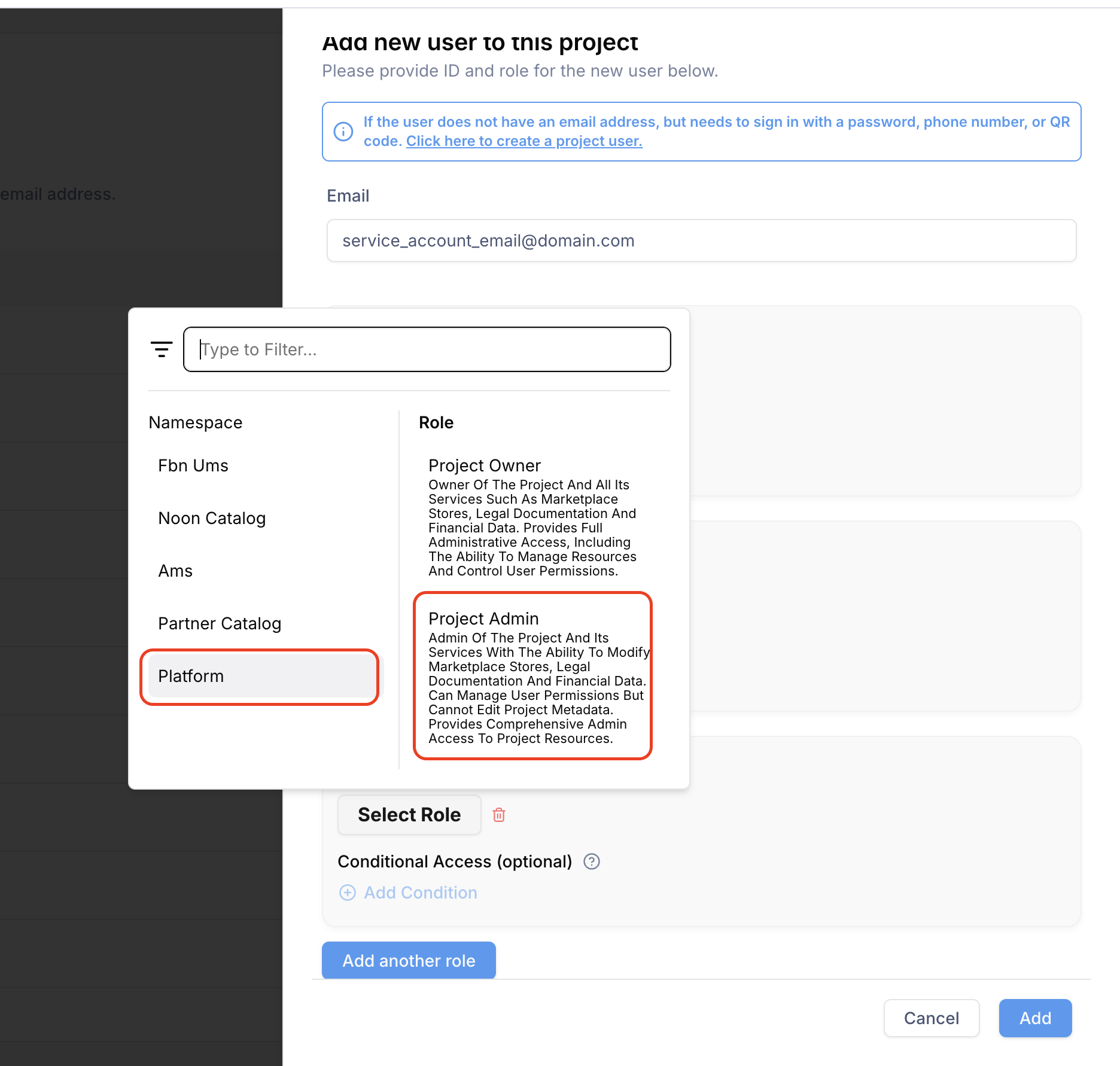
In the role picker, pick the Platform namespace on the left, then select Project Admin on the right and click Select Role. Project Admin gives SellerSheet the access it needs to read your reports, orders, and catalog (and manage your stores) without handing over full owner control — choose Project Owner instead only if you want the key to have everything. Add more roles if you like, then click Add. A .json key file downloads automatically — it contains your "key_id", "private_key", "project_code", and "channel_identifier".
Keep this file private
The "private_key" inside the .json is your secret — treat it like a password. noon allows up to 5 keys per service account; you can deactivate a key in the Access App at any time if you suspect misuse. The session a key creates lasts 30 days, and SellerSheet refreshes it for you automatically.
Part 2 — Add your noon account on SellerSheet
1. Open Stores & Marketplaces and click Add noon account
Sign in to the SellerSheet app, open Settings → Stores & Marketplaces, and in the noon accounts section click Add noon account.
2. Name the account and pick marketplaces
In the dialog:
- Enter an account name — this is how you'll refer to the store everywhere in SellerSheet, so keep it short and memorable (e.g.
myStore). Use 1–10 letters, digits or_— no spaces or hyphens: the hyphen is reserved to attach the marketplace. You then reference a specific marketplace as<store>-<CC>(e.g.myStore-AE,myStore-SA), the same identifier in both places:- In your sheet — the value you put in the noon Reports Store column (the same convention as your Amazon stores).
- With AI / MCP — the
storeargument every noon tool takes (e.g. "run the noon orders report formyStore-AE").
- Pick the marketplaces your account covers (e.g. UAE, Saudi). Every noon marketplace counts against your plan's marketplaces, the same as Amazon ones.
3. Paste the key and click Connect account
Choose Use an API key and copy the values from the .json file you downloaded in Part 1 into the fields: Key ID ("key_id"), Private key ("private_key" — the whole key, BEGIN and END lines included), Project code ("project_code") and, if your file has one, Channel identifier ("channel_identifier"). Click Connect account.
If the dialog offers Connect with noon, you can instead sign in on noon and let it grant access — no key to copy.
SellerSheet validates the key against noon and stores it encrypted (it is never shown again). Your account appears in the noon accounts table as Connected, with its project code and Recheck, Marketplaces, Reconnect and Disconnect actions.
A noon project can be connected to one SellerSheet account. If a project is already linked, disconnect it there first before reconnecting.
What you can do with noon in SellerSheet
Once connected, open the SellerSheet sidebar in Google Sheets and switch to the noon tab. Every operation works on both paths — the sidebar for hands-on work and the MCP tools so your AI agent can run them for you:
- Reports — orders, finance, FBN inventory aging, and product-views & sales reports, downloaded to Drive and into your sheet (and available on a schedule). See noon Reports.
- Stock — read current stock and push stock updates.
- Pricing — read prices and upsert price changes.
- Offers — pull your offer data.
- Catalog — map your SKUs to noon barcodes. See noon Listings.
- FBN inbound — create and manage inbound shipments end to end: eligible items, shipment create/update, items, delivery slots, scheduling, and status. See noon FBN.
- Cross-border pricing — read and upsert transfer prices and cross-border product setup.
- Warehouses — list your noon warehouses.
A good first run: create the noon Reports tab, choose a report and date range, click Create Reports, then Get Reports — SellerSheet downloads it, exactly like Amazon Store Reports.
FAQ
What do I need to connect noon to SellerSheet?
A noon Partner account with access to the noon Access App, where you create a service account and download its .json key. No password sharing is involved.
Where do I get my noon service-account key?
In the noon Access App, open API Users, click Add Service Account, choose the Platform namespace with the Project Admin role, and click Add. A .json key file downloads automatically.
Is my noon private key safe with SellerSheet?
Yes. SellerSheet validates the key and stores the private key encrypted. Never share the .json file itself — it is your secret key.
Which noon role does the service account need?
The Platform namespace with the Project Admin role. Without it, noon reports return a missing-role error.
Can I run noon reports in Google Sheets after connecting?
Yes. Open the SellerSheet sidebar in Google Sheets, go to the noon tab, create the noon Reports tab, and run your reports.