
How to Bulk Check ASIN Selling Eligibility in Google Sheets
Check whether you may sell hundreds of ASINs at once in Google Sheets — allowed, approval required or restricted, with Amazon's reason and the approval link — next to each product's Buy Box, rank and offer counts.
TL;DR
- The Restriction Check tab answers "can I sell this?" for many ASINs at once, before you spend time on a listing.
- Type the store and ASIN, pick a Reason Locale, then click Fetch ASIN Info (image, brand, rank, Buy Box, offers) and Get Restrictions.
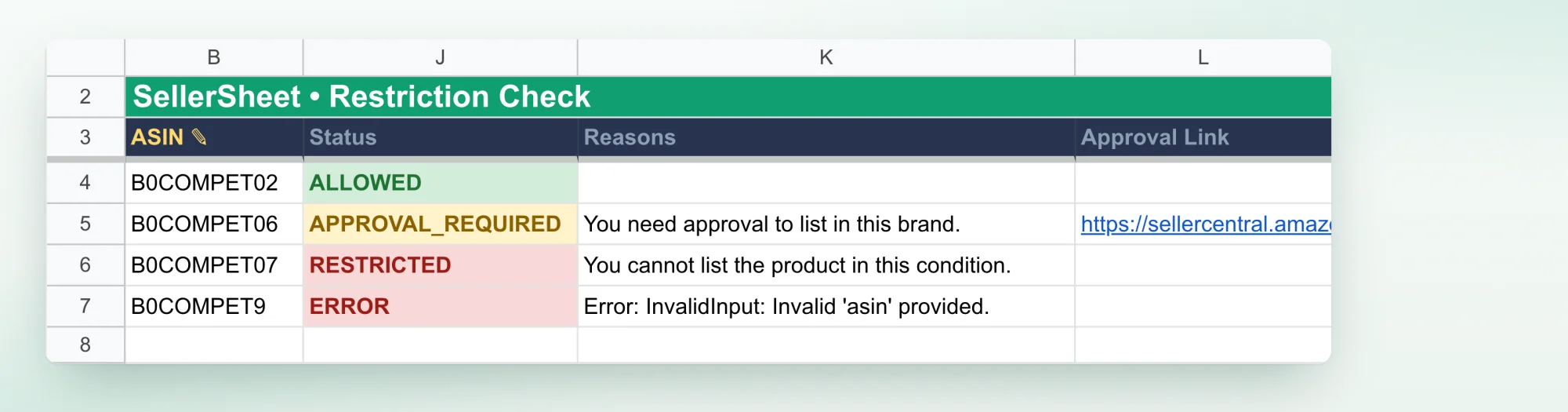
- Status reads
ALLOWED,APPROVAL_REQUIRED(open the Approval Link to apply) orRESTRICTED, with Amazon's reason next to it. A check that failed readsERROR, with the error.
Series: manage Amazon listings in Google Sheets
Overview · 1 All your SKUs · 2 Live listings · 3 Competitor research · 4 Selling eligibility · 5 Write listings with AI · 6 Bulk create & revise
In Seller Central you search each ASIN under Catalog › Add Products to see whether you may sell it. Here each row also shows the Buy Box price and how many FBA and FBM sellers compete, so you can decide on a product at a glance. In this guide myStore-US checks a short list of earbuds it found in competitor research — and the same product on myStore-UK — in two clicks.
Before you start
- Connect your store at sellersheetai.com and install the sidebar (Install & first sync).
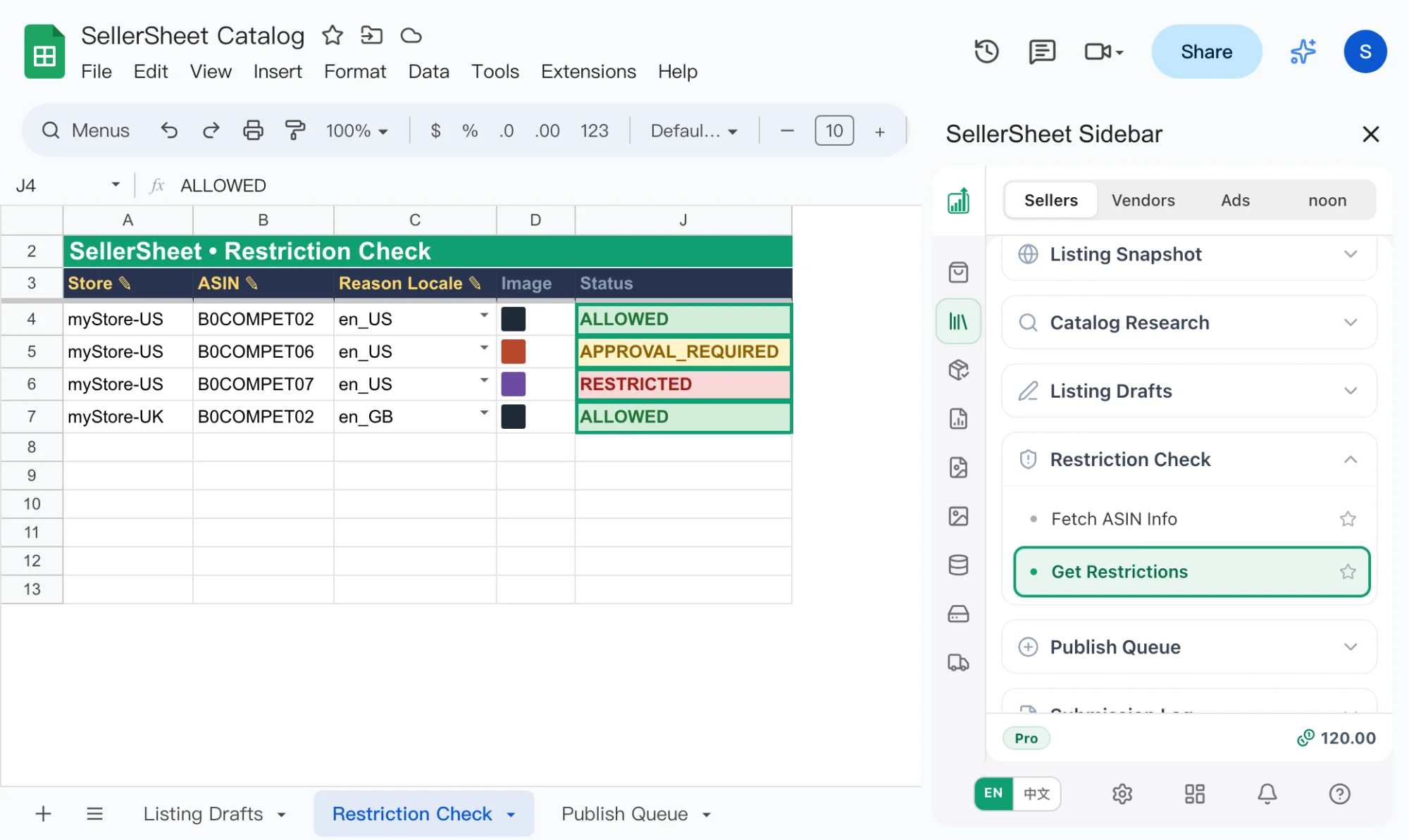
- In the sidebar's Catalogs panel, click Catalog under Resources to open the SellerSheet Catalog spreadsheet. Go to the Restriction Check tab and expand the Restriction Check group in the sidebar.
Check a list of ASINs
Fill the rows
From row 4, fill three columns per row:
- Store ✎: the store and marketplace, such as
myStore-US. Type it — there is no dropdown — with the country code in capitals. - ASIN ✎: the ASIN, in capitals and without spaces.
- Reason Locale ✎: pick the language Amazon should write its reasons in, such as en_US. Without one, the row gets
ERROR.
Coming from Catalog Research? Select the rows there and click Send to Restriction Check: their store and ASIN are added here, with the Reason Locale set to the marketplace's language (en_US for myStore-US). Change it if you want Amazon's reasons in another language.
Click Fetch ASIN Info
Click Fetch ASIN Info. Each row fills with the product's Image and Brand, its Rank (it can be blank), the Buy Box price and the number of FBA Offers and MFC Offers (merchant-fulfilled, FBM), all for a new item.
The sidebar says how many rows it filled. A row left without an image got nothing back from Amazon: check the ASIN and the store's marketplace.
Click Get Restrictions
Click Get Restrictions. Each row gets a Status, the Reasons, an Approval Link where Amazon offers one, and the time in Checked At. A long list stops after about five minutes, and the sidebar says so; click Get Restrictions again to check the rest.
What the Status means
| Status | What to do |
|---|---|
ALLOWED | You can list it as new. Go on to Listing Drafts or the Publish Queue. |
APPROVAL_REQUIRED | Open the Approval Link and apply in Seller Central. Check again once you're approved. |
RESTRICTED | You can't list it. Reasons says why. Pick another product. |
ERROR | The check failed. Reasons gives the error — often a mistyped ASIN or a missing Reason Locale. Fix it, clear Status and check again. |
Tricks
- Check again: clear the Status cell and click Get Restrictions. Rows with a Status are skipped, so a second click only checks new rows — and continues where a long run stopped.
- Fresh prices: Fetch ASIN Info refreshes the Buy Box, rank and offers on every click. The image and brand are fetched only while Image is empty; clear it to fetch them again.
- Several marketplaces: each row has its own store, so put the same ASIN on a
myStore-USrow and amyStore-UKrow to see where you may sell it. - Track your approvals: sort by Status to group the
APPROVAL_REQUIREDrows, apply through their links, then clear their Status and check them again later.
Frequently asked questions
What do the Status values mean?
ALLOWED means you can list the ASIN as new. APPROVAL_REQUIRED means Amazon needs to approve you first — open the Approval Link to apply. RESTRICTED means you cannot list it, and Reasons says why. ERROR means the check failed for that row, and Reasons gives the error.
How do I check a row again?
Clear its Status cell and click Get Restrictions. Rows that already have a Status are skipped, so a second click only checks the new rows.
Why does a row say ERROR with "missing reasonLocale"?
The row has no Reason Locale. Pick one from the dropdown, clear the ERROR in Status, and click Get Restrictions again.
Which condition does the check use?
New. Both the restriction check and the Buy Box and offer counts are for a new item.
Does it use credits?
No. These buttons don't use Credits. On the Free plan, each check counts toward your monthly sidebar operations.