
How to Download Amazon Reports in Google Sheets
Request Amazon Seller Central reports from Google Sheets, track their status, and download the finished reports to Google Drive with links in your sheet.
Requesting and downloading Amazon reports directly from Google Sheets streamlines your workflow. This guide shows you how to use SellerSheet to request, track and download reports like Inventory, Orders and Tax reports.
Prerequisites
- Store connected: your Amazon store is connected under Settings → Stores & Marketplaces in the SellerSheet app.
- Sidebar installed: the SellerSheet add-on is installed in Google Sheets. If not, follow Install & first sync.
Step 1: Open the reports spreadsheet
You work in the Store Reports spreadsheet. There are two ways to find it:
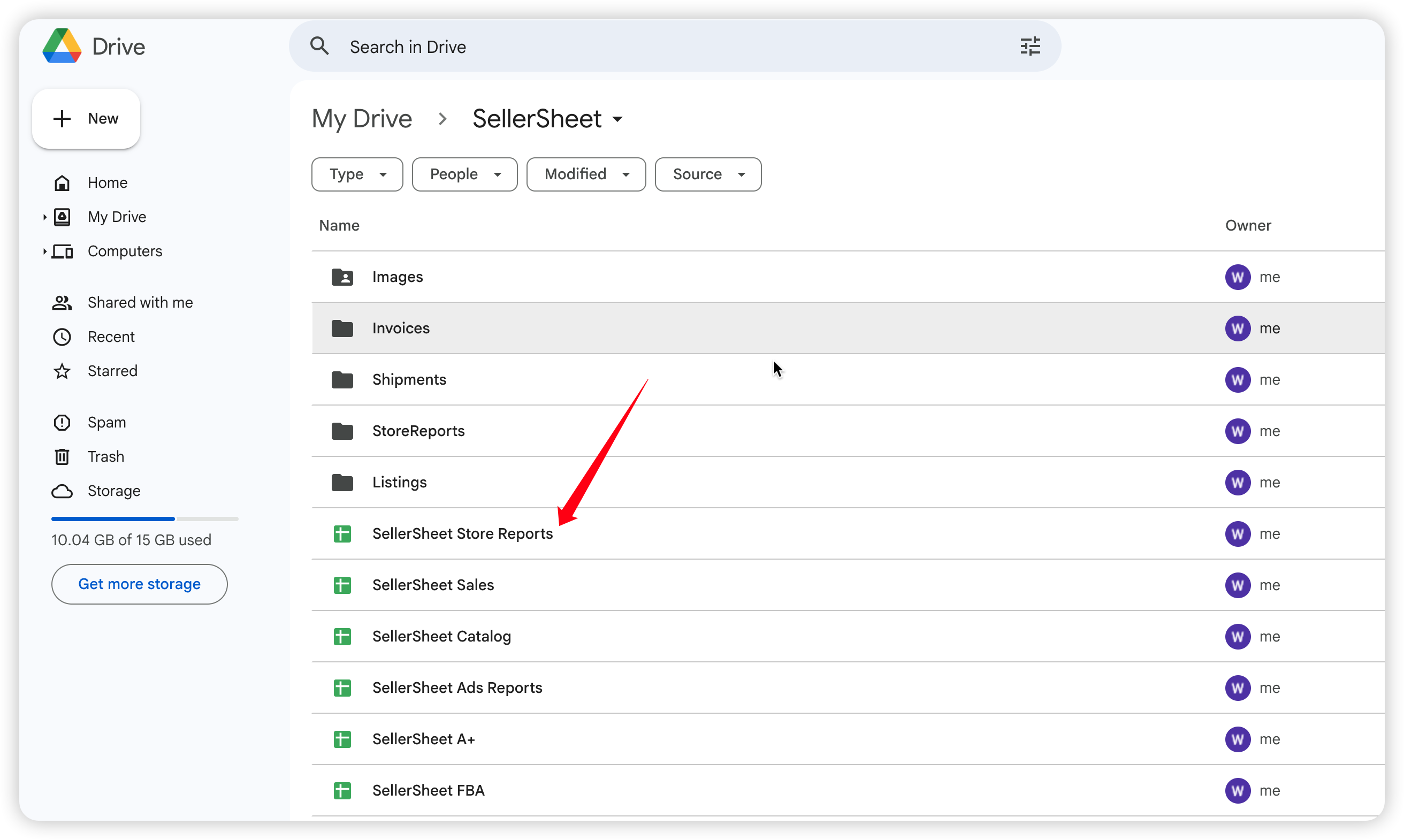
- Go to your Google Drive root folder and open the SellerSheet folder.
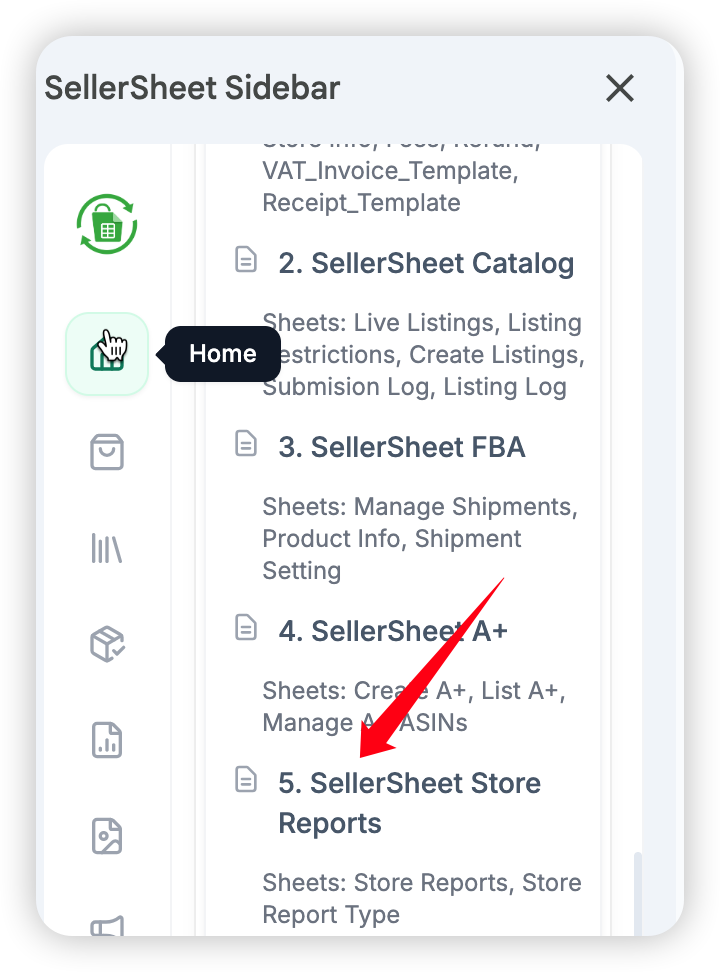
- Or open the SellerSheet sidebar, go to the Store Reports panel, and open the Store Reports spreadsheet from its Resources section.
Step 2: Configure your report
In the spreadsheet, go to the Store Reports sheet. This is where you configure report requests, one per row from row 4 down.
Understanding column colors
| Color | Type | Meaning |
|---|---|---|
| Yellow | Required | Must be filled (e.g. Store, Report Type). |
| Light yellow | Optional | Optional or conditional (e.g. Data Start/End Time). |
| Gray | Auto-filled | Do not edit. The system fills these (e.g. Report ID, Status). |
Pro tip: bulk processing
You don't have to do this one by one. Fill out several rows with different reports or stores. When you click Create Reports or Get Reports, SellerSheet applies the action to all valid rows in the active sheet at once.
Filling the data
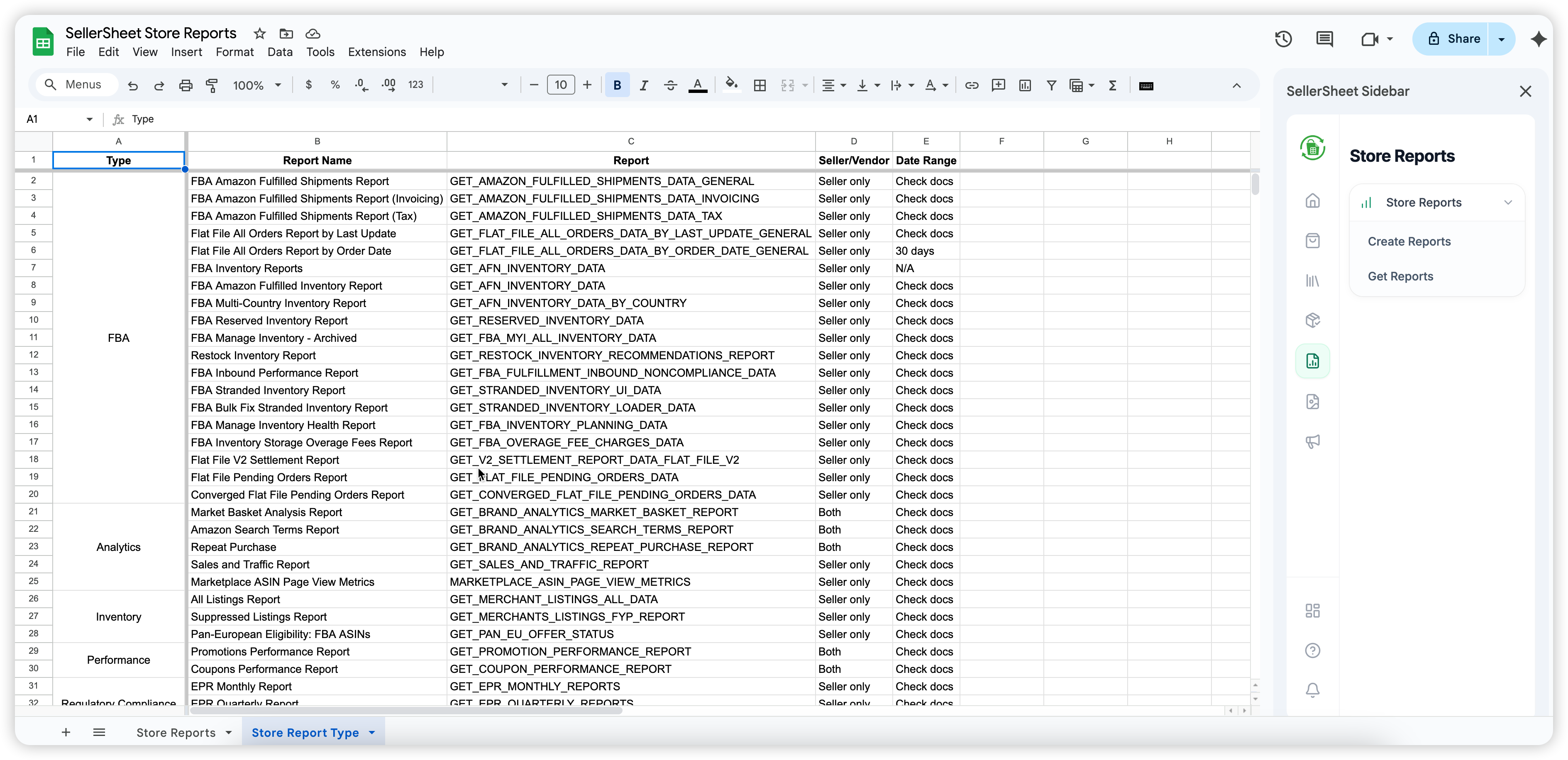
- Find the report type: switch to the Store Report Type sheet for the list of available reports. Copy the exact Report Type of the report you want (e.g.
GET_FLAT_FILE_OPEN_LISTINGS_DATA). - Paste the report type: go back to the Store Reports sheet and paste it into the Report Type column.
- Enter the store: fill in the Store column with the store ref — your store name plus the country code (e.g. for a store named "myStore" in the UAE, enter
myStore-AE). - Time frame (optional): if the report requires a date range (like 30 days), fill in Data Start Time and Data End Time.
Step 3: Create reports
Once your rows are configured:
- Open the sidebar and go to the Store Reports panel.
- Click Create Reports.
SellerSheet sends the requests to Amazon. On success, it fills the Request Time and Report ID columns automatically. A row that already has a Report ID is skipped.
Step 4: Get reports
After requesting reports, check their status and download them:
- Click Get Reports in the sidebar.
- SellerSheet checks the status of each Report ID with Amazon.
Processing status meanings
- IN_QUEUE / IN_PROGRESS: Amazon is still preparing the report. Try again later.
- DONE: the report is ready. SellerSheet downloads it to your Drive in
SellerSheet/StoreReports/{Report Name}. - CANCELLED: usually means the report contains no data and Amazon cancelled it.
- FATAL: error in the request (e.g. an incorrect report type or a missing required time frame).
Once a report is DONE, the Sheet URL and Folder URL columns fill in with links to your new report file.
Important notes
- Active sheet scope: both Create Reports and Get Reports apply to the active sheet — they process all valid rows of the sheet you are viewing.
- Skipping logic: Create Reports skips rows that already have a Report ID. Get Reports skips rows whose status is already DONE, CANCELLED or FATAL, or whose Sheet URL already exists.
For searching reports Amazon already generated (like settlement reports) and asking your AI client for a report in plain language, see How to Create Store Reports in Google Sheets. Every button of the panel is listed on Store Reports.