
How to Manage Amazon Listings in Google Sheets
The SellerSheet Catalog spreadsheet puts every Amazon listing job in Google Sheets — see every SKU, audit what's live, research competitors, write copy with AI, check eligibility, and create, update or delete listings in bulk.
TL;DR
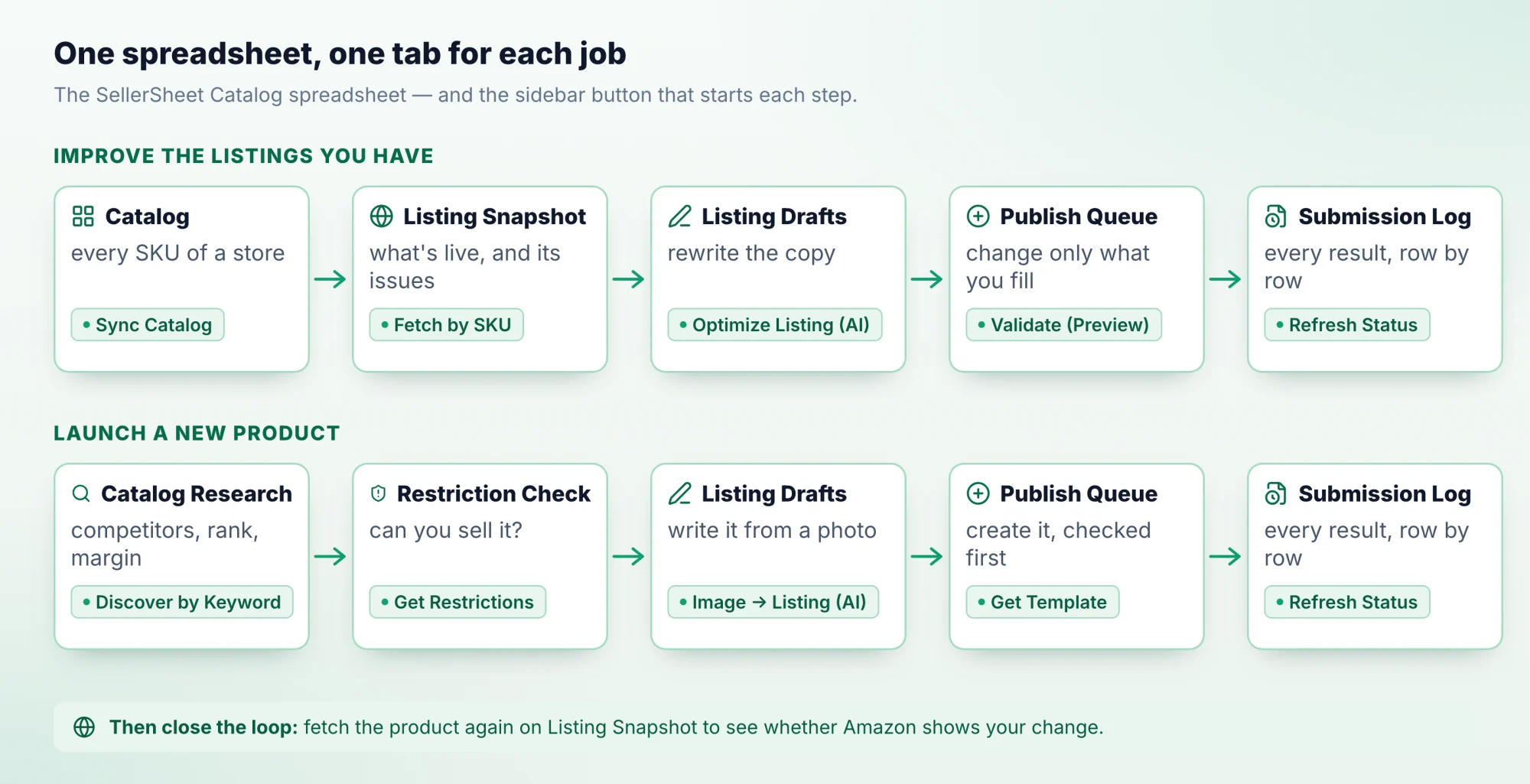
- One spreadsheet, the SellerSheet Catalog, holds a tab for each Amazon listing job. The sidebar's Catalogs panel has a button group for each tab.
- Improve what you sell: Catalog → Listing Snapshot → Listing Drafts → Publish Queue. Launch a product: Catalog Research → Restriction Check → Listing Drafts → Publish Queue.
- Before you publish, Validate (Preview) has Amazon check each row. Every result lands in the Submission Log.
In Seller Central you edit one listing per page, or you upload a flat file and wait for a report. This series moves the whole job into Google Sheets: a row per listing, a button per step, and Amazon's own check before you publish. Each guide follows the same made-up store, myStore-US, selling earbuds under myBrand.
The series
1 · See all your SKUs
2 · Fetch live listings
3 · Research competitors
4 · Check selling eligibility
5 · Write listings with AI
6 · Bulk create & revise
Why do it in a sheet
- Amazon checks your rows first. Click Validate (Preview). Amazon checks each row, and the sheet shows which attribute is missing. You don't upload a file, wait and download a report.
- Bulk, not one at a time. One click fills every row of a tab, and one feed sends up to 25,000 rows.
- Side by side. Your listing next to Amazon's catalog page, your product next to its competitors, every language of a listing in one tab.
- Your own record: the spreadsheet lives in your Google Drive. The Submission Log keeps every validation and submission, and Backup saves a copy of the Publish Queue before a big change.
- Share it: your team works in the same spreadsheet, with Google Sheets' comments and version history.
Before you start
- Start free and connect your Amazon store under Settings → Stores & Marketplaces.
- Install the SellerSheet sidebar in Google Sheets. See Install & first sync.
- Open the sidebar's Catalogs panel. Under Resources, click Catalog. This is your SellerSheet Catalog spreadsheet; the sidebar made it in your Google Drive the first time you opened it.
- Each tab's buttons sit in the sidebar group of the same name. Open the tab before you click.
The sidebar's full button list is on Catalogs.
Prefer to ask your AI?
SellerSheet MCP connects the AI assistant you already use, such as Claude or ChatGPT, to your store. It can prepare a Publish Queue template, fill the rows and validate them. You review and approve the rows in the sheet.
Frequently asked questions
Do I need to know Seller Central's flat files?
No, but it helps. The Publish Queue holds the same columns as Seller Central's category template, with the guide for each column on row 4 and Amazon's check before anything goes live.
Where does my listing data live?
Your spreadsheets are in your own Google Drive. The sidebar reads from and writes to Amazon through Amazon's official Selling Partner API. For the Catalog tab, SellerSheet keeps a daily copy of your Amazon All Listings report, and Sync Catalog copies it into the sheet.
Can my AI assistant do this instead?
Yes. The same listing jobs are available over SellerSheet MCP, so an AI assistant you already use can fill and submit the Publish Queue while you review the rows in the sheet.