
How to Research Amazon Competitors in Google Sheets
Compare competitor ASINs side by side in Google Sheets — copy, best-seller rank, Buy Box, offers, FBA fees and your margin — then pick a winner and send it to drafting and the restriction check.
TL;DR
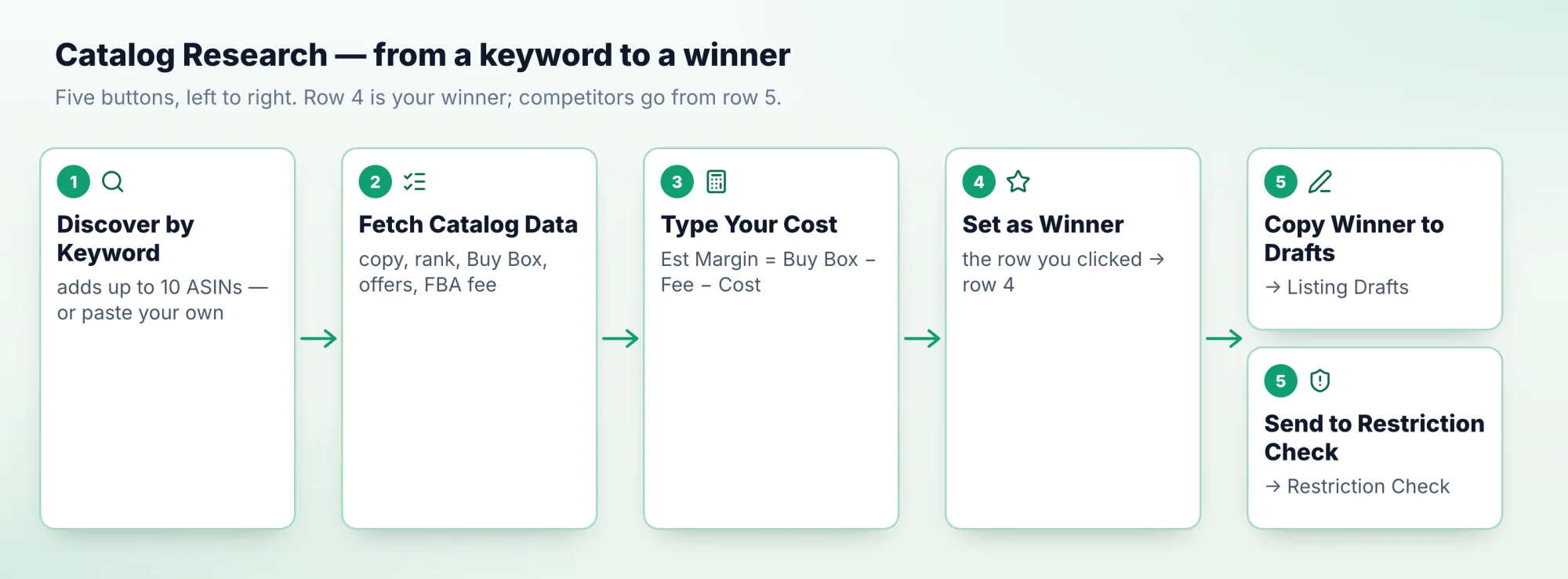
- The Catalog Research tab compares competitor ASINs side by side: copy, best-seller rank, Buy Box, offer counts, an FBA fee estimate and your margin.
- Discover by Keyword finds up to 10 ASINs for a search term; Fetch Catalog Data fills every row. Type Your Cost to see Est Margin.
- Listed? shows at once which ASINs you already sell.
- Set as Winner puts the best one in row 4. From there, Copy Winner to Drafts starts the listing and Send to Restriction Check checks you may sell it.
Series: manage Amazon listings in Google Sheets
Overview · 1 All your SKUs · 2 Live listings · 3 Competitor research · 4 Selling eligibility · 5 Write listings with AI · 6 Bulk create & revise
In this guide myStore-US wants to launch open-ear earbuds under myBrand. You find the products that already sell, see what each one would earn you, and pick the one to model your listing on. One click does for every row what Amazon's Revenue Calculator does one ASIN at a time.
Before you start
- Connect your store at sellersheetai.com and install the sidebar (Install & first sync).
- In the sidebar's Catalogs panel, click Catalog under Resources to open the SellerSheet Catalog spreadsheet. Go to the Catalog Research tab and expand the Catalog Research group in the sidebar.
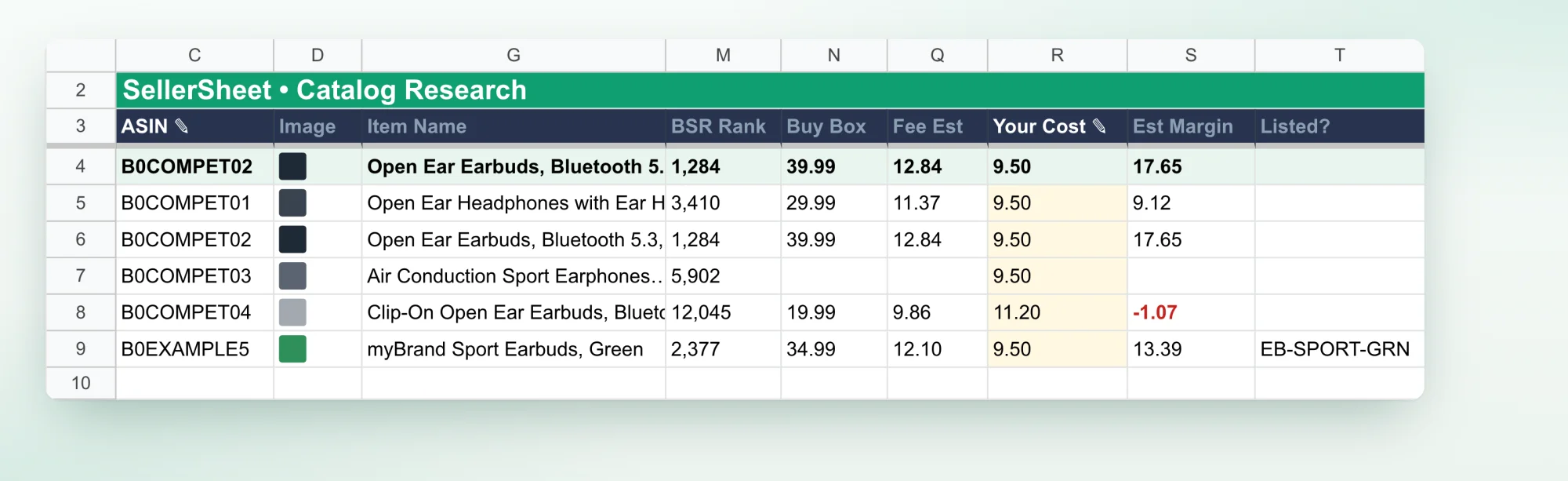
- The tab has two parts: row 4 is your winner, and competitors go from row 5 down.
Research a niche
Find the competitors
Type myStore-US in A5 (any row from 4 down works). Click Discover by Keyword, type open ear earbuds in the box and click OK. Up to 10 ASINs that match are added below and filled. They are Amazon's first 10 catalog matches, not a best-seller list, and ASINs already on the tab are skipped — so try other search terms to add more.
You can also paste ASINs you found yourself into column C, from row 5, with the store in column A.
Fetch Catalog Data
Rows from Discover by Keyword are already filled. Click Fetch Catalog Data for ASINs you pasted, or to refresh the numbers. Every row from 5 with a store and an ASIN fills from Amazon:
| Columns | What you learn |
|---|---|
| Image, Product Type, Brand Name, Item Name … Generic Keyword | The competitor's listing copy, one bullet per line. |
| BSR Category, BSR Rank | Its Best Sellers Rank. A lower rank sells more; compare ranks only within the same BSR Category. |
| Buy Box | The Buy Box price for a new item. |
| FBA Offers, MFC Offers | How many sellers offer it new — fulfilled by Amazon, or merchant-fulfilled (MFC, the same as FBM). |
| Fee Est | Amazon's FBA fulfilment plus referral fee, at the Buy Box price. |
| Listed? | Your own SKUs on that ASIN, if you already sell it. |
Type your cost
Type your landed cost per unit — what one unit costs you, delivered to Amazon — in the marketplace's currency, in Your Cost. Est Margin works it out as Buy Box − Fee Est − Your Cost, and turns red when you would lose money. It leaves out ads, storage, returns and other costs.
Set as Winner
Click anywhere in the row you want to model, then click Set as Winner. The whole row is copied to row 4. Fetches never overwrite row 4, so edit it freely — it is your summary.
Send it on
- Copy Winner to Drafts: type your own SKU in B4 first, then click it. A row is added to Listing Drafts with the store, your SKU, the winner's ASIN, image, product type and copy. Each click adds another row.
- Send to Restriction Check: select the rows to check (row 4 counts too) and click it. Their store and ASIN are added to Restriction Check, with the marketplace's language as the Reason Locale. That tab shows whether Amazon restricts that product for you — for example a brand or category that needs approval.
The draft keeps the competitor's ASIN
When the draft reaches the Publish Queue, the winner's ASIN lands in Merchant Suggested ASIN. If you are launching your own product, clear that cell before you publish. Otherwise your SKU joins the competitor's listing.
Tricks
- Model a price: row 4 recalculates its margin from its own cells. Type a different Buy Box, fee or cost in row 4 to see what a lower price would earn. Fee Est doesn't follow the Buy Box by itself, so change it too.
- Refresh the numbers: click Fetch Catalog Data again — every competitor row is fetched again. Buy Box, offers, fee and Listed? are only written when Amazon returns a value, so clear those cells first to see whether a Buy Box has gone.
- Compare marketplaces: put the same ASIN on two rows with different stores, such as
myStore-USandmyStore-UK. Each row reads its own marketplace. - Spot what you already sell: Listed? names your SKU on an ASIN. A competitor row that is really your own product shows up at once.
- Reasons in another language: the rows you send to Restriction Check get the marketplace's language as their Reason Locale. Pick another locale there before you click Get Restrictions.
Frequently asked questions
Why are Fee Est and Est Margin blank?
The fee is estimated at the Buy Box price, so an ASIN without a Buy Box gets no fee and no margin. With a fee, Est Margin appears once you type Your Cost.
Is the fee right if I ship the product myself?
Fee Est is Amazon's FBA fulfilment fee plus the referral fee, at the Buy Box price. If you ship it yourself, you pay the referral fee plus your own shipping instead. Type your own fee in the winner row to see that margin.
Does Catalog Research use my Credits?
No. These buttons read Amazon's catalog, pricing and fee data; none of them uses Credits.
Does a second Fetch Catalog Data overwrite my rows?
It refreshes every competitor row from 5 down, but never touches row 4 (your winner) or Your Cost. Buy Box, offers, fee and Listed? are only written when Amazon returns a value, so clear those cells first if you want to see a Buy Box the ASIN has lost.