
How to See All Your Amazon SKUs in Google Sheets
List every SKU of an Amazon store in Google Sheets — thumbnail, price, stock, status and fulfillment — filter it in seconds and pass SKUs on to Listing Snapshot or the Publish Queue.
TL;DR
- The Catalog tab lists every SKU of one store: thumbnail, ASIN, name, price, quantity, status, live status and fulfillment.
- Type the store in A4 and click Sync Catalog. Then filter row 5 as you like — no new sync needed.
- A first win: filter Fulfillment to FBM and Qty to 0. These are the listings you can't ship today.
- Use the list as the starting point for everything else: paste its SKUs into Listing Snapshot or the Publish Queue.
Series: manage Amazon listings in Google Sheets
Overview · 1 All your SKUs · 2 Live listings · 3 Competitor research · 4 Selling eligibility · 5 Write listings with AI · 6 Bulk create & revise
Seller Central's inventory page shows your listings a page at a time. The Catalog tab puts the whole store in one sheet you can sort, filter and copy from. In this guide the store is myStore-US, selling earbuds under myBrand.
Before you start
- Connect your Amazon store at sellersheetai.com under Settings → Stores & Marketplaces. SellerSheet then syncs Amazon's All Listings report for it every day.
- Install the SellerSheet sidebar. See Install & first sync.
- Open the SellerSheet Catalog spreadsheet from the sidebar's Catalogs panel (under Resources). If another tab is open when you click Sync Catalog, the sidebar switches to the Catalog tab for you; type the store and click again.
Sync the list
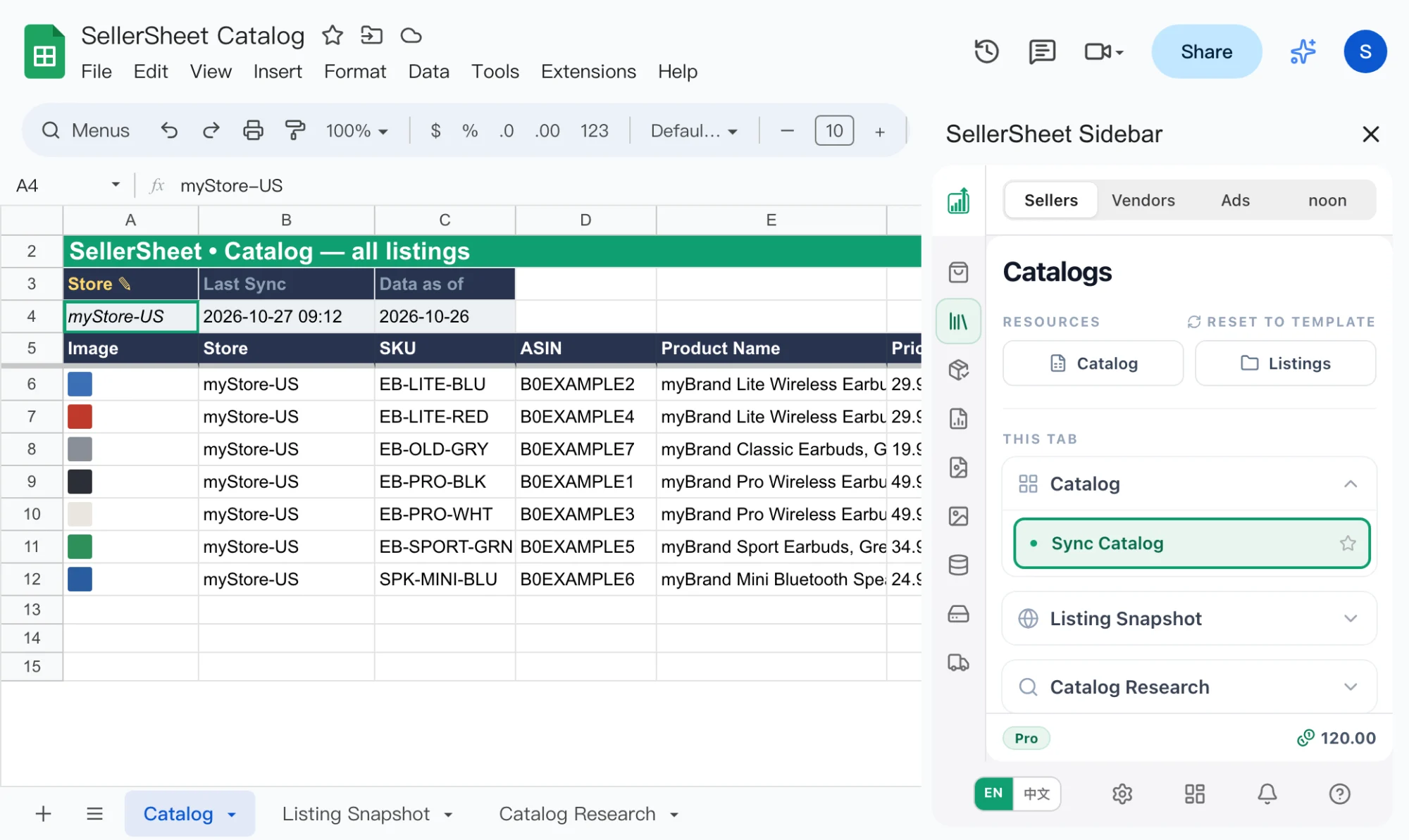
Type the store in A4
Type one store and marketplace, such as myStore-US: your store name, a dash, and the country code. Not sure of the name? Leave A4 empty and click Sync Catalog — the message lists your stores.
Click Sync Catalog
Click Catalog › Sync Catalog. The rows land from row 6, sorted by SKU. B4 Last Sync shows when you synced, and C4 Data as of shows the date of the Amazon report the rows come from.
Read and filter
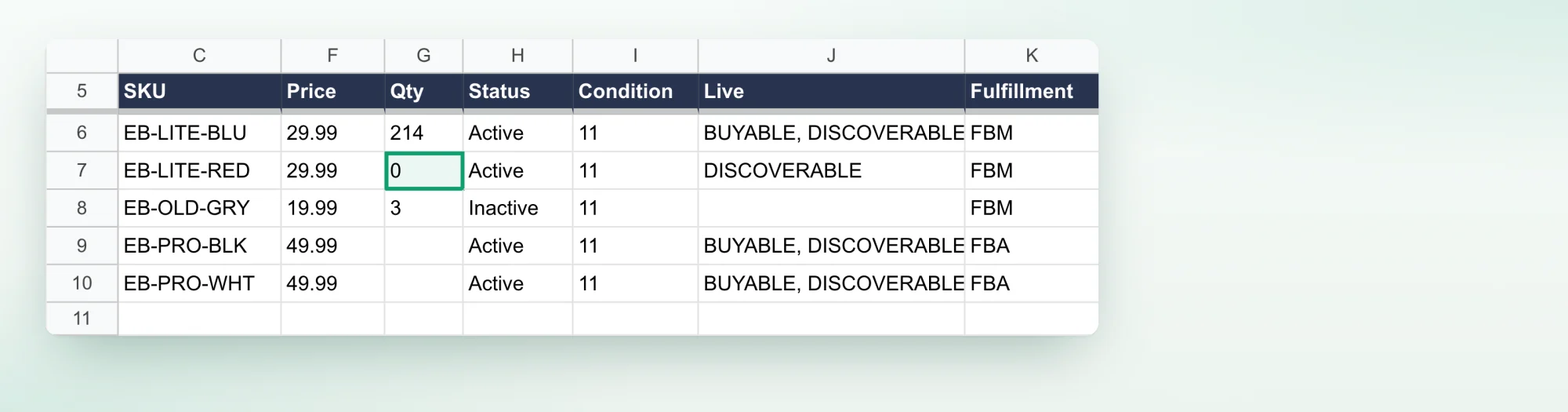
| Column | What it shows |
|---|---|
| Image | The main image as a thumbnail. |
| Store, SKU, ASIN | One row per SKU, marketplace and condition. |
| Product Name, Price, Qty | As on the listing. Qty is your own stock on an FBM listing; Amazon's report doesn't carry FBA stock. |
| Status | The listing status from Amazon's report, such as Active. |
| Condition | Amazon's condition code; 11 means New. |
| Live | What Amazon last reported. BUYABLE, DISCOVERABLE: shoppers can buy and find it. DISCOVERABLE alone: they can find it but not buy it. Checked in the background, so it can be weeks old. |
| Fulfillment | FBA or FBM. |
| Open Date | When the listing was created. |
Use the filter buttons on row 5 to narrow the list. A filter works at once, without a new sync.
Things to do with the list
- Find the gaps: filter Qty to 0 and Fulfillment to FBM to see what you can't ship. Or filter Live with Text does not contain
BUYABLE, then check those SKUs on Listing Snapshot for today's status. - Audit them: copy the SKUs of column C into column B of Listing Snapshot from row 4, with the store in column A, and click Fetch by SKU to see each listing's issues.
- Edit them in bulk: on the Publish Queue, type the store in A3, paste the SKUs in column B from row 7 and click Fetch by SKU. Each row fills from its live listing, ready to change only the cells you edit (
PARTIAL_UPDATE). - Delete old SKUs: paste them into the Publish Queue with
DELETEin column C — that is all aDELETErow needs. ADELETEcan't be undone, so click Backup first.
Tricks
- Keep your filters: each sync rebuilds the row-5 filter and clears its settings. Save the ones you use as a filter view (Data › Filter views › Create new filter view); a sync leaves filter views alone.
- Keep your notes elsewhere: a sync rewrites everything from row 5 down, and re-sorts it. Put your own notes on another tab and look them up by SKU with
XLOOKUP, so they never fall out of line. - Another marketplace: change A4 (for example to
myStore-UK) and sync again. The table is replaced with that marketplace's SKUs. - A listing you created today appears after Amazon's next daily report.
If the sync stops
| The message says | What to do |
|---|---|
| Type ONE store in A4 before syncing | A4 is empty or says All. Type one store; the message lists yours. |
| A4 accepts ONE store, but 2 were given | Keep one store in A4. |
| "…" is not a store you own or have been given access to | Check the spelling against the list in the message. |
| No … listings in the SellerSheet warehouse for this store | That marketplace's listings report isn't syncing. Check the store's report sync and marketplace on the dashboard. |
| The SellerSheet warehouse has NO listings for this store at all | Its listings report isn't syncing. Re-authorize the store, or check its report sync on the dashboard. |
| ROW CAP HIT | The store has more than 50,000 listings; the first 50,000 are shown. |
| … hit the 50,000-row query cap … the table is incomplete | A store that sells in several marketplaces can reach this with fewer listings in one marketplace. Some SKUs are missing from the tab. |
Frequently asked questions
Where does the Catalog tab get its data?
From Amazon's All Listings report, which SellerSheet syncs for your store every day once the store is connected. Sync Catalog reads the newest copy SellerSheet holds — it does not ask Amazon live.
Why is "Data as of" amber?
C4 shows the date of the Amazon report the rows come from, and turns amber when it is more than a day old. A catalog that has not changed is not stored again, so the date can be a few days old while the list is still current.
Can I see every marketplace at once?
No. A4 takes one store and marketplace, such as myStore-US. To see another marketplace, change A4 and click Sync Catalog again; the table is replaced.
Why are the Image or Live cells blank for some SKUs?
Images and the live status are filled in the background, newest SKUs first, and each SKU is checked again about every 60 days. A SKU that has not been reached yet shows blank cells; sync again later.