
How to Bulk Create Invoices for Amazon Customers in Google Sheets
Generate VAT invoices or receipts for your Amazon customers in bulk, straight from your synced order data in Google Sheets, with your own branding and tax details.
Generating professional invoices for Amazon customers can be a time-consuming manual task. SellerSheet automates the whole process: you create VAT invoices or receipts in bulk, directly from your synced order data in Google Sheets.
Step 1: Configure store information
Before generating invoices, set up your business branding and tax details in the Store Info sheet of the SellerSheet Sales spreadsheet. This data fills your invoice headers.
| Column | Type | Description | Sample |
|---|---|---|---|
| StoreName | Required | Primary identifier. Must match a connected store. | myStore-AE |
| Company | Required | Legal entity name for the invoice header. | The Company LLC |
| TRN / TaxRate | Optional | If empty, a receipt is generated instead of a VAT invoice. | 123… / 5% |
Invoice type logic
SellerSheet uses the presence of TRN and TaxRate to decide the invoice type:
- RECEIPT (REC): created if TRN or TaxRate is missing.
- VAT INVOICE (INV): created only if both TRN and TaxRate are provided.
Step 2: Generate bulk invoices
Once your store information is configured, generate invoices by providing order and customer details in the Invoices sheet.
Invoice prerequisites
- Store match: the store in the Store column must exist in the Store Info sheet.
- Order match: the Amazon Order ID must already exist in your Orders sheet (synced from the Sales panel — see How to Sync Amazon Orders).
- Shipped orders: the order must be shipped.
Filling customer data
Fill in these columns for each order you want to invoice:
- Customer Name: the name that appears on the invoice.
- Customer TRN: required for VAT invoices only.
- Customer Address: ship-to or billing address.
- Invoice Time: optional. If left blank, the current time is used.
Triggering creation
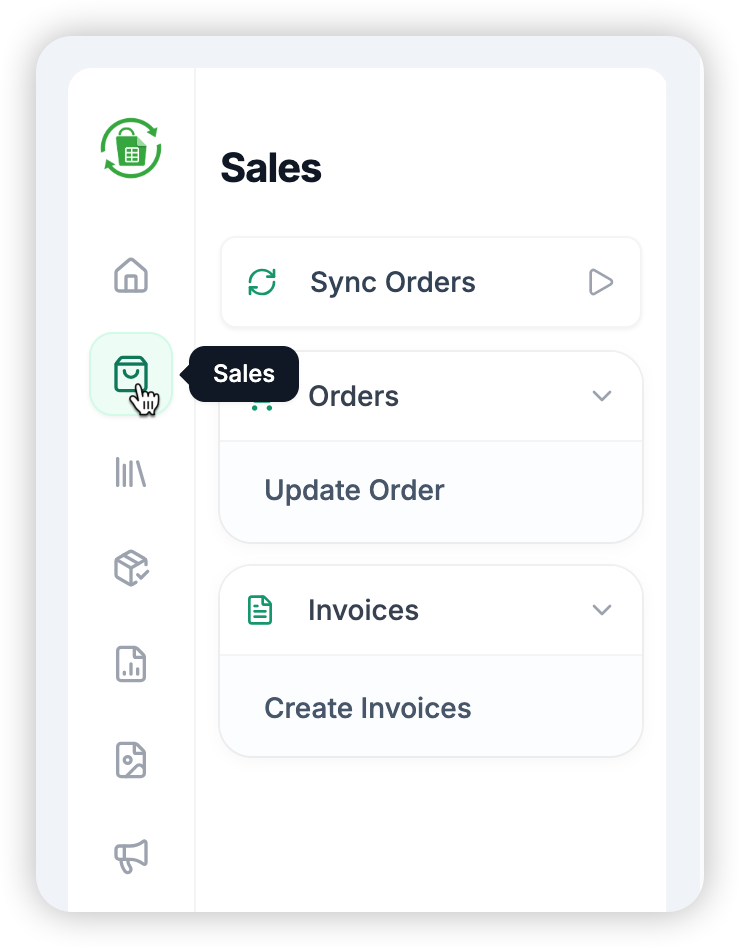
- Go to the Sales panel in the SellerSheet sidebar.
- In the Invoices dropdown, click Create Invoices.
SellerSheet goes through the active sheet and generates a PDF invoice in Google Drive for every valid row.
Automation results
- Auto-populated links: once created, the Invoice Link and Invoice Folder columns fill in automatically.
- Folder logic: invoices are stored in a nested structure,
SellerSheet/{Store}/{Marketplace}/{Year}/{Month}(for exampleSellerSheet/myStore/AE/2025/07).
Limits and scope
- Runtime limits: Google Sheets sidebars have a standard execution limit. If you have hundreds of invoices and the process stops, click Create Invoices again to resume.
- Active sheet scope: the action only processes the sheet you are currently viewing.
- Skipping logic: if an Invoice Link already exists for a row, SellerSheet skips it to prevent duplicates.
Pro tip: resuming tasks
If invoicing times out because of Google's limits, your progress is saved. Click the button again — it picks up where it left off by skipping rows that already have links.
Conclusion
With SellerSheet's bulk invoicing, you keep professional communication with your customers while your tax paperwork runs on its own. Every button of the panel is listed on Sales.