Send to Amazon from Google Sheets: an FBA shipment, plan to box labels
Walk one Send-to-Amazon inbound shipment through Google Sheets with the SellerSheet sidebar — set up addresses and products once, create the plan, compare placement and carrier quotes, confirm, print box and FNSKU labels, and track it to check-in. Both Box First and Split First.
On this page
- First, pick a mode: box first or split first
- Input rules that prevent half the errors
- Setup: one workbook, four tabs
- Create a plan
- The STA tab
- Mode A: box first (STA-BoxFirst)
- Enter the boxes
- Click the buttons in order
- Mode B: split first (STA-SplitFirst, truckload)
- Filling STA-Pack
- Compare prices in STA-Options
- Pallets: three fields before the quotes
- The destination you want isn't offered?
- After confirming: labels, packing list, tracking
- Messages you may see
Creating an FBA inbound shipment in Seller Central takes a tour of pages: the ship-from address, products one by one, box dimensions, a carrier, then the labels. The next shipment, you do it all again.
SellerSheet runs the whole Send to Amazon (STA) workflow in Google Sheets. Addresses and products are entered once; after that every plan is: add a row → click a button → compare the quotes in the sheet → confirm. This post walks one shipment through in order: set up the address and products → create the plan → compare placement and carrier quotes → confirm → get box and FNSKU labels → track it.
First, pick a mode: box first or split first
The mode is the Fulfillment Split dropdown on Manage Shipments. It cannot be changed afterwards — a wrong pick means Cancel Plan and a new row.
| Mode (as in the dropdown) | For | You do first | Amazon does first | Tab / sidebar menu |
|---|---|---|---|---|
| Box First, Split Later | Small parcel (SPD), box contents known | Enter each box | Then splits the boxes across fulfillment centers | STA-BoxFirst |
| Split First (Only for truckload) | LTL / FTL freight | Enter each SKU's total quantity | Splits the goods into shipments; you pack per shipment | STA-SplitFirst |
Each sidebar menu's buttons run only on the tab of the same name: an STA-BoxFirst button clicked on an STA-SplitFirst tab is refused, and the message says which menu and tab to use.
Input rules that prevent half the errors
The sheet is read by a program, so type every symbol with a half-width (English) keyboard.
| Input | Write it as | Common mistakes | If it's wrong |
|---|---|---|---|
| Box Dimensions | 50x30x30 (lowercase x, L×W×H) | full-width digits, 50cm x 30 x 30, only two parts | "Box Dimensions" must be LxWxH …. Uppercase X, × and * are accepted too, but digits must be half-width |
| Box No. | 1, 1~5 (half-width ~) | full-width ~, 1-5 | Invalid box number format |
| Dates | 2026-09-25 (YYYY-MM-DD), or a date cell the sheet recognizes | 2026.09.25 | … is not a valid date; a past date gets no transportation options from Amazon |
| Store | myStore-US (store name - country code) | myStore_US, myStore US | Store not found |
| Declared Value (pallets only) | 1000 (a plain number, USD) | $1000, 1000 USD, 1,000 | Declared Value must be a plain number in USD |
| Pallet Info (pallets only) | one pallet per line: 100x100x150x300x1 STACKABLE (LxWxHxWeightxQty + STACKABLE / NON_STACKABLE) | × separators, missing STACKABLE | expected LxWxHxWeightxQty … |
| Dropdown cells | Pick from the dropdown | typing yes, a misspelled code | a red warning corner; Amazon may reject the value |
In one line
Lowercase x in dimensions, ~ for box ranges, YYYY-MM-DD for dates, plain numbers for money.
Setup: one workbook, four tabs
Before you start: your store is connected to SellerSheet, the SellerSheet sidebar is installed in Google Sheets (Extensions → SellerSheet → Open Sidebar), and the seller account has FBA.
The first time the sidebar opens, SellerSheet creates the FBA workbook (SellerSheet FBA) in Drive › SellerSheet › Shipment. Under FBA & Logistics (the truck icon) the sidebar has four menus: Inventory Health, Manage Shipments, STA-BoxFirst and STA-SplitFirst; Resources at the top links the FBA workbook and the Drive shipment folder. Hover any button and its tooltip says what it reads, where it writes and what it needs first.
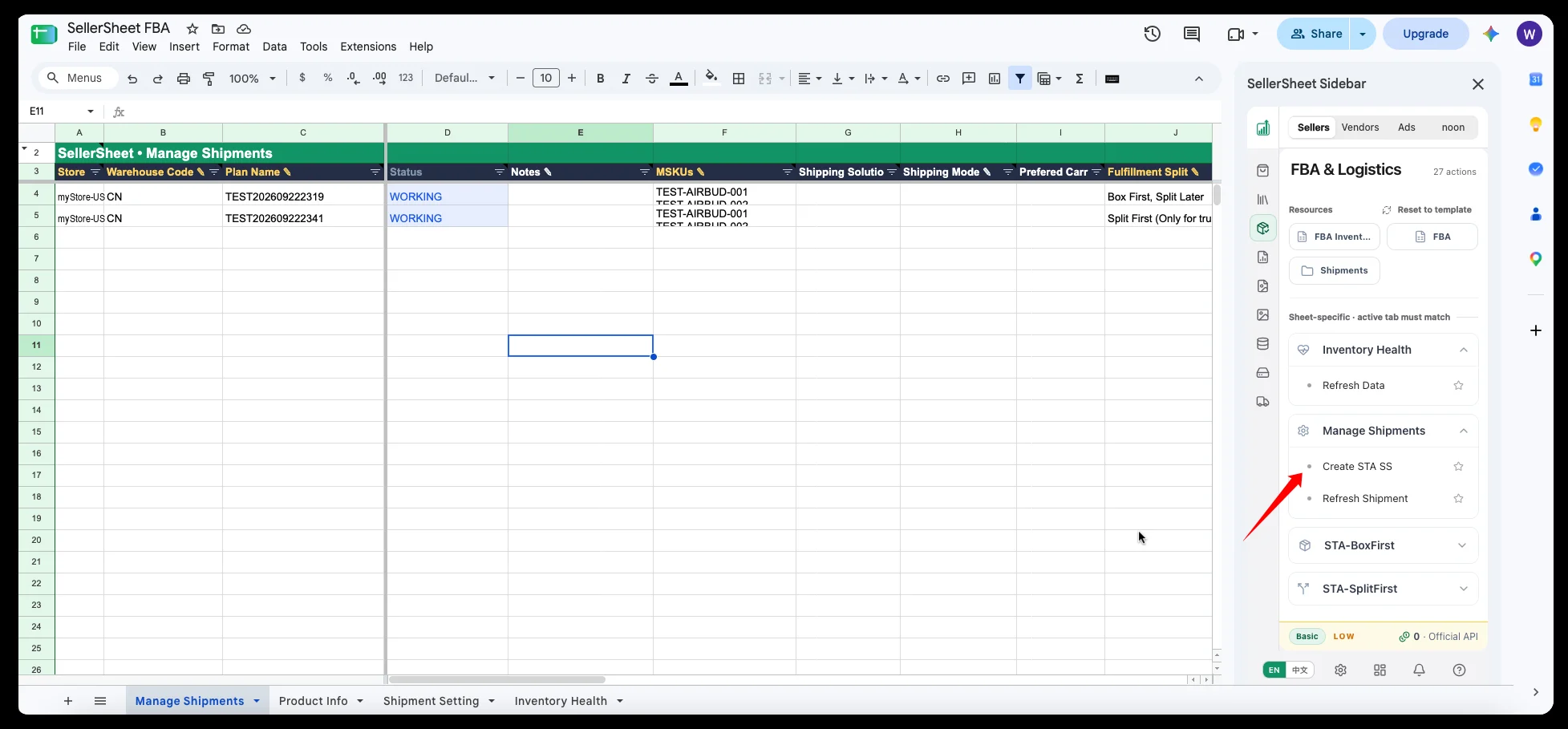
Manage Shipments is the register across plans: every plan starts as a row here.
| Tab | What it holds | How often |
|---|---|---|
| Shipment Setting | Ship-from address book, one warehouse per row; its Warehouse Code (e.g. CN-WH1) is the key | Once per warehouse |
| Product Info | Product catalog: SKU, FNSKU, Qty/Box, box dimensions, box weight, prep defaults, image URL | Once per SKU |
| Inventory Health | FBA inventory health | Refresh when needed |
| Manage Shipments | One row per shipment | A new row per plan |
Fill Product Info fast: on Inventory Health, pick the store in A4 and click Inventory Health › Refresh Data in the sidebar — every active SKU's image, SKU, FNSKU, ASIN and title land in the sheet. Copy them to Product Info and add the box details. Write Image URL as a plain https:// link, not =IMAGE().
Create a plan
Add a row on Manage Shipments and fill the ✎ columns:
- Store (
myStore-US), Warehouse Code (already in Shipment Setting), Plan Name (shown in Seller Central; the plan workbook is named after it). - MSKUs: the SKUs to send, one per line in the cell (Alt+Enter).
- Fulfillment Split: the mode, above.
- Case Packed:
YES= factory cartons;NO= mixed or uneven boxes. - Ship Date (today or later) and Delivery Window Start Date, both
YYYY-MM-DD.
Plan Folder, Plan ID, Shipment ID, FBA ID and the other columns are written by SellerSheet — leave them empty.
Select the row and click Manage Shipments › Create STA SS. SellerSheet:
- Checks the required fields and that every MSKU has a Product Info row (Box First also needs complete box details), and tells you what is missing.
- Copies the
STA-BoxFirstorSTA-SplitFirsttemplate into a new plan workbook named after the Plan Name. - Creates
SellerSheet › Shipment › store › country › year › month › plan folderin Drive and puts the workbook there; box-label PDFs go there later. - Turns Plan Folder into a link to that folder and Plan Name into a link to the workbook, then opens it (if the browser blocks the pop-up, click Open STA in the notification).
Every later button is clicked on the plan workbook's STA tab. Clicking Create STA SS again on the same row does not create a second workbook.
The STA tab
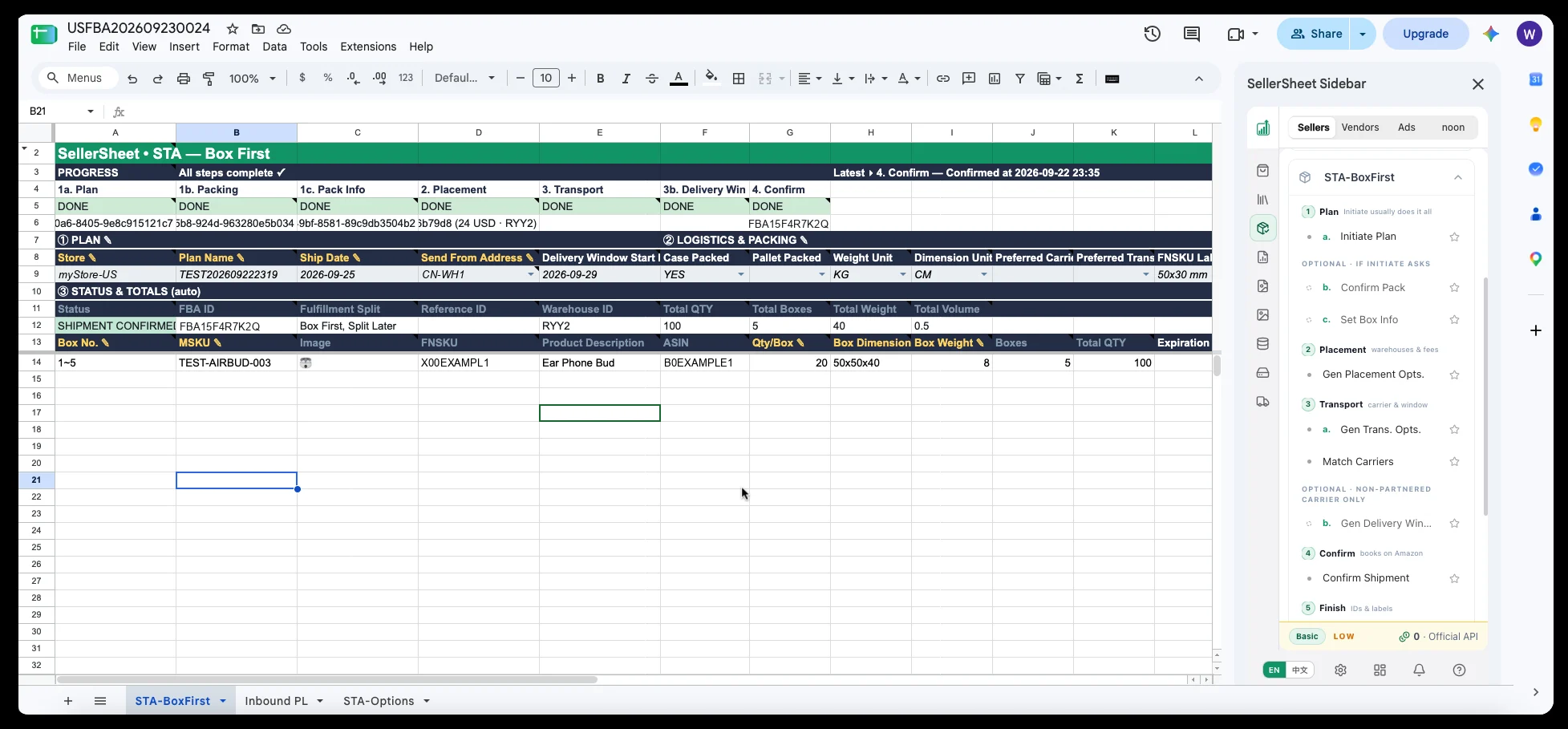
A confirmed STA-BoxFirst: progress, plan parameters, automatic totals and the boxes, each in its own band.
- PROGRESS (rows 4–6): the step names, their state (green
DONE/ yellowREADY/ redCANCELLED) and the Amazon ID each step produced; when you need to choose, row 6 shows a dropdown. - ① PLAN ✎ and ② LOGISTICS & PACKING ✎ (row 9): store, plan name, ship date, ship-from address (a warehouse-code dropdown), Case Packed, Pallet Packed, units, preferred carrier, and the two label sizes — L9 FNSKU label (
30x40 mm/50x30 mm/60x40 mm) and M9 box label (100x150 mm= Amazon's page as is;100x100 mm= just the square at the top of each page, complete and never scaled). - ③ STATUS & TOTALS (row 12, automatic): status, FBA ID, reference ID, destination, total units, boxes, weight and volume.
- Detail (from row 14): boxes for Box First, SKU totals for Split First.
Mode A: box first (STA-BoxFirst)
Enter the boxes
One row per box group × product: Box No., MSKU (image, FNSKU, title and ASIN fill in), Qty/Box, Box Dimension, Box Weight; the box count and total units are computed.
Case Packed (F9) decides where the last three come from: with YES they come from Product Info; with NO you type what is actually in each box. Either way, rows that share a box number must carry the same dimensions and weight — those describe the whole box.
The rule: a box range means those boxes are identical; several rows with one box number mean that box holds several products. Number boxes from 1 to the last one without gaps. Three examples:
Example 1 · one product per box (Case Packed = YES): box 1 holds SKU1, boxes 2–5 hold SKU2.
| Box No. | MSKU | Qty/Box | Box Dimension | Box Weight | Boxes (auto) | Total QTY (auto) |
|---|---|---|---|---|---|---|
1 | SKU1 | 40 | 50x50x40 | 15 | 1 | 40 |
2~5 | SKU2 | 30 | 40x40x40 | 10 | 4 | 120 |
Example 2 · two products per box, every box the same (Case Packed = YES): five boxes of SKU1 ×20 + SKU2 ×10. One row per product, both with box number 1~5 and the whole box's dimensions and weight.
| Box No. | MSKU | Qty/Box | Box Dimension | Box Weight | Boxes (auto) | Total QTY (auto) |
|---|---|---|---|---|---|---|
1~5 | SKU1 | 20 | 40x40x30 | 12 | 5 | 100 |
1~5 | SKU2 | 10 | 40x40x30 | 12 | 5 | 50 |
Example 3 · every box different (Case Packed = NO): boxes 1–2 mixed, box 3 a single product, boxes 4–5 another, box 6 the remainder.
| Box No. | MSKU | Qty/Box | Box Dimension | Box Weight | Boxes (auto) | Total QTY (auto) |
|---|---|---|---|---|---|---|
1~2 | SKU1 | 30 | 50x50x40 | 20 | 2 | 60 |
1~2 | SKU2 | 20 | 50x50x40 | 20 | 2 | 40 |
3 | SKU1 | 40 | 50x50x50 | 24 | 1 | 40 |
4~5 | SKU2 | 30 | 30x30x40 | 9 | 2 | 60 |
6 | SKU1 | 12 | 50x50x40 | 7 | 1 | 12 |
Click the buttons in order
| Step | Button | What it does |
|---|---|---|
| 1 | Initiate Plan | Creates the inbound plan from row 9 and the boxes, and fetches the packing options; a single option is confirmed at once. With several, pick one in progress cell 1b and click Confirm Pack |
| 2 | Gen Placement Opts. | Fetches Amazon's placement options and fees into STA-Options; pick one in the dropdown of progress cell 2 |
| 3 | Gen Trans. Opts. | Fetches transportation options (partnered or your own carrier) for every option's shipments into STA-Options; pick one per shipment there. Pallets need their three fields first — see below |
| 3b | Gen Delivery Window | Only with your own carrier: fetches delivery windows; pick one per shipment in STA-Options |
| 4 | Confirm Shipment | Books the shipment with Amazon. FBA ID, reference ID and destination are written back to the STA tab and STA-Options, Manage Shipments gets one row per shipment, and the final packing list Inbound PL is created |
| 5 | Get Ref. ID / Get FBA Box Labels / Get FNSKU Labels | Refresh reference IDs (they can take 5–10 minutes after confirming); fetch box-label PDFs into the plan folder; build FNSKU item labels and open them for printing |
| Any time | Cancel Plan | Cancels the plan with Amazon and marks the steps CANCELLED; the same workbook can take the next plan |
In step 2 each dropdown item reads "option ID (placement fee · destination)":
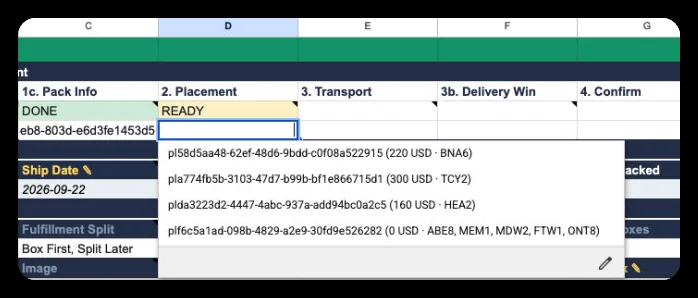
Placement fees run from 0 to 300 USD; the free option usually means more destinations.
Mode B: split first (STA-SplitFirst, truckload)
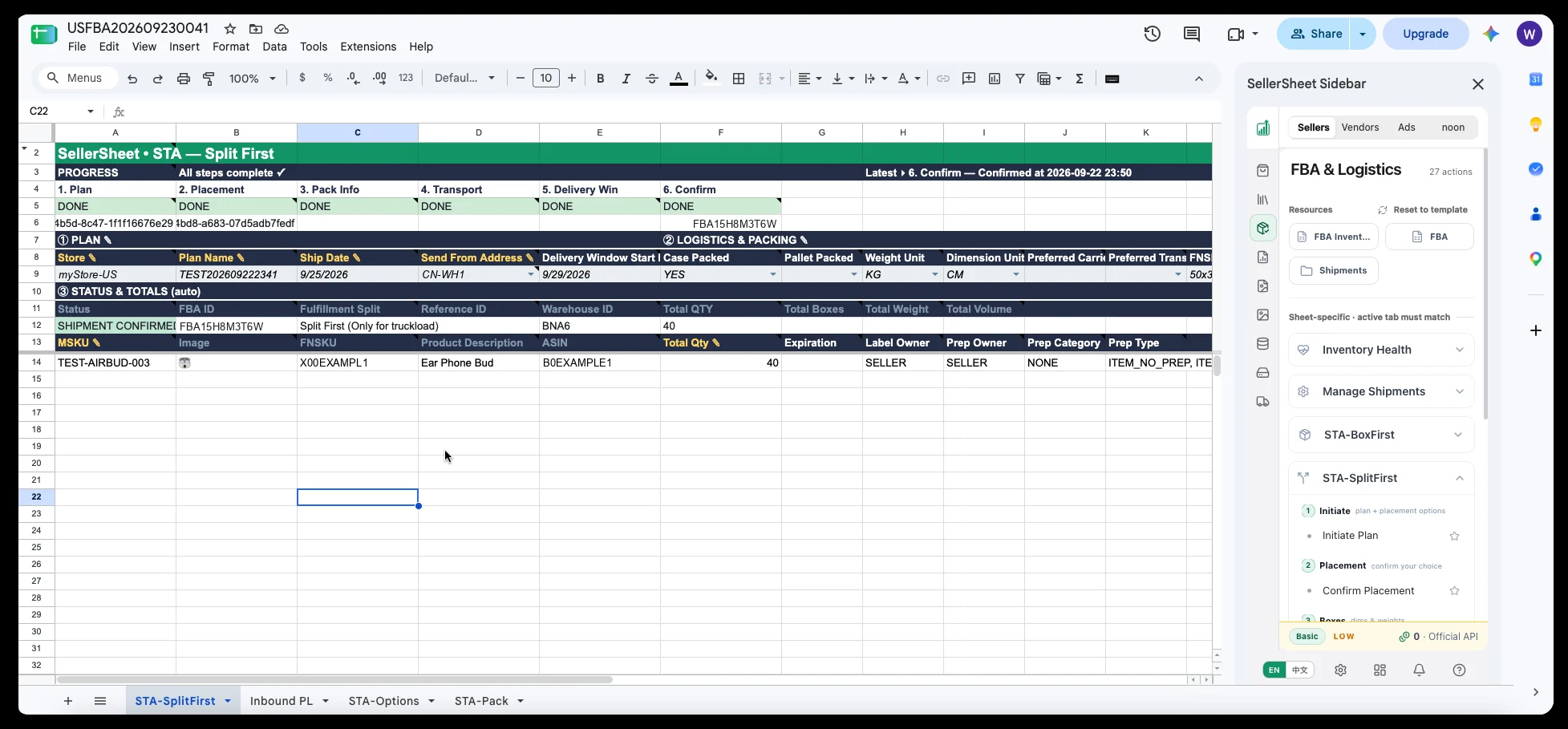
Split First takes only each SKU's total; packing comes after Amazon has split the shipments.
The detail table takes just MSKU and Total Qty (plus expiration and label / prep owners when needed). The buttons, in order:
- Initiate Plan: creates the plan and fetches the placement options right away into STA-Options and progress cell 2.
- Confirm Placement: confirms the option you picked and creates STA-Pack, one packing block per shipment.
- Pack in STA-Pack, then click Set Box Info to send the boxes.
- Gen Trans. Opts.: transportation options for the confirmed option's shipments (pallets: fill the three fields first).
- Gen Delivery Window: only with your own carrier.
- Confirm Shipment: books it. Labels, FNSKU labels and Cancel Plan work as in Box First.
Filling STA-Pack
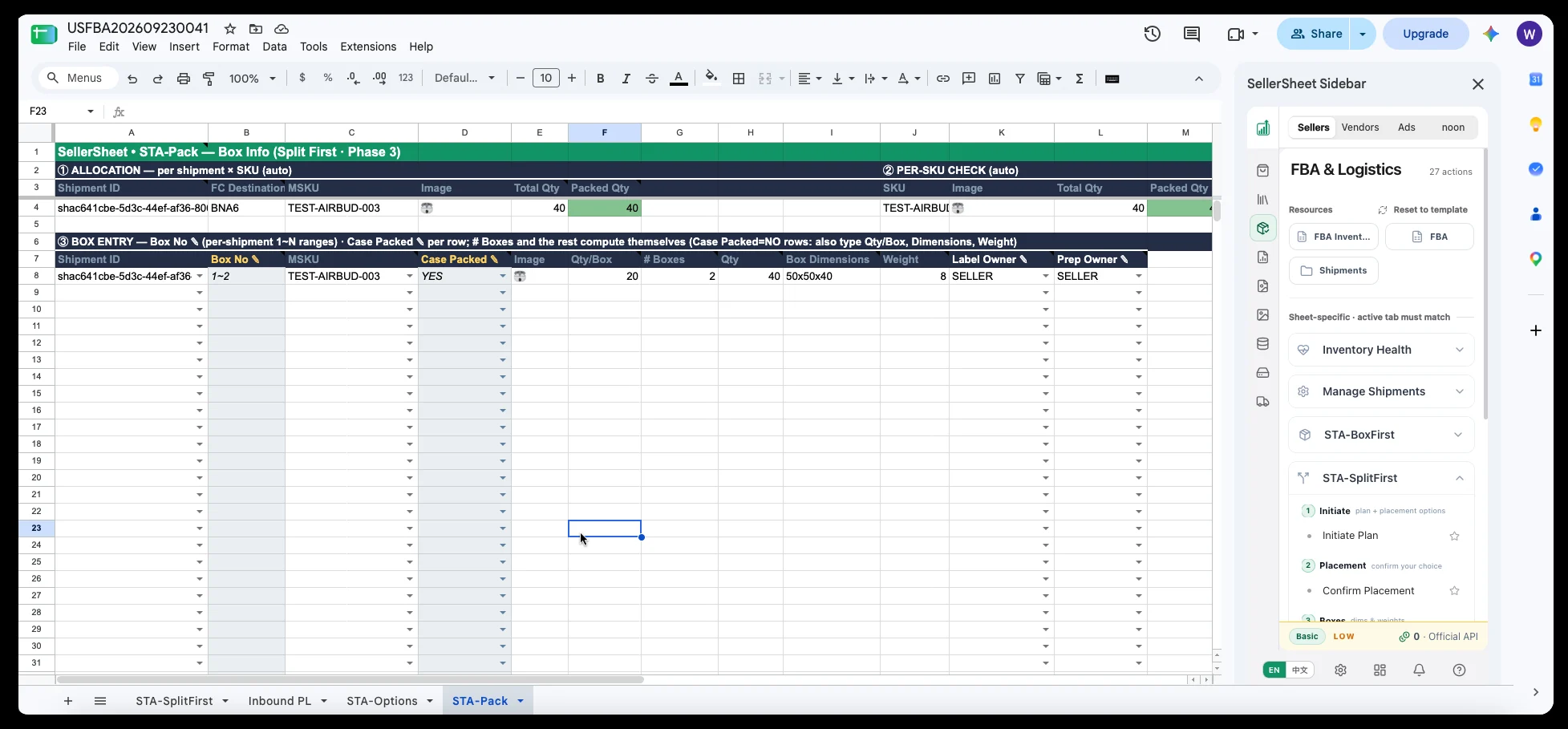
Packed Qty turns green when exactly packed, yellow when short, red when over.
- ① ALLOCATION (automatic): one row per shipment × MSKU, with destination, planned and packed quantities.
- ② PER-SKU CHECK (automatic): each SKU's planned and packed totals.
- ③ BOX ENTRY: yours to fill. One row per shipment × MSKU is ready; Box No starts at 1 within each shipment (e.g.
1~2), and you can insert rows for other box types. Rows withCase Packed = NOalso need Qty/Box, dimensions and weight.
When everything is green, click Set Box Info.
Compare prices in STA-Options
STA-Options is the comparison page for both modes: a summary with one row per placement option on top, then one block per option with a row per shipment.
A placement option uses one kind of carrier, so each option gets two comparable totals instead of one mixed number:
- Total (Partnered) = placement fee + the Amazon-partnered (
AMAZON_PARTNERED_CARRIER) fees you picked on its shipment rows. - Total (Own) = placement fee + your own freight estimate (
USE_YOUR_OWN_CARRIER).
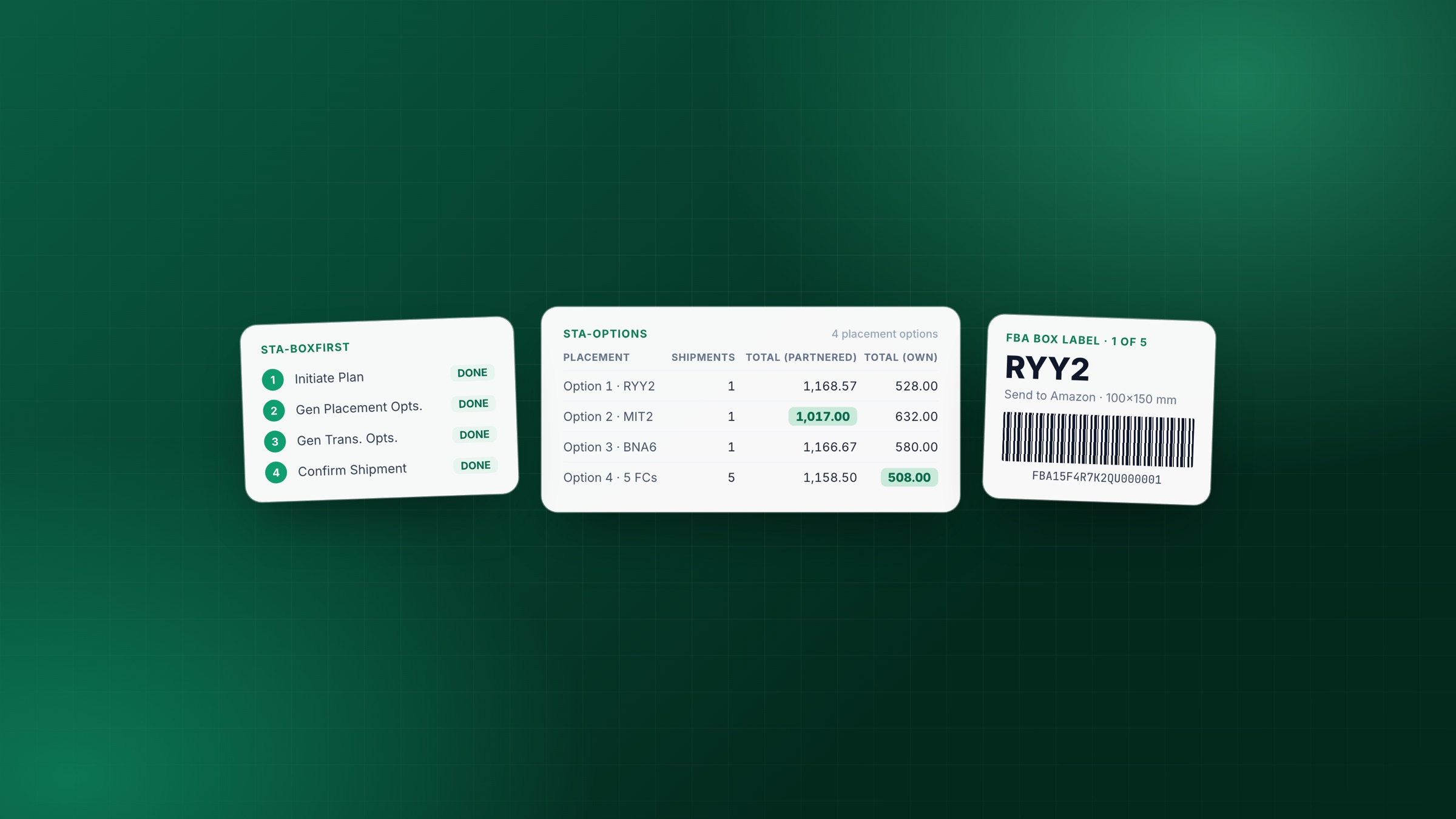
The lowest cell in each column turns green: compare across options, and within one option whether Amazon's carrier or your own is cheaper.
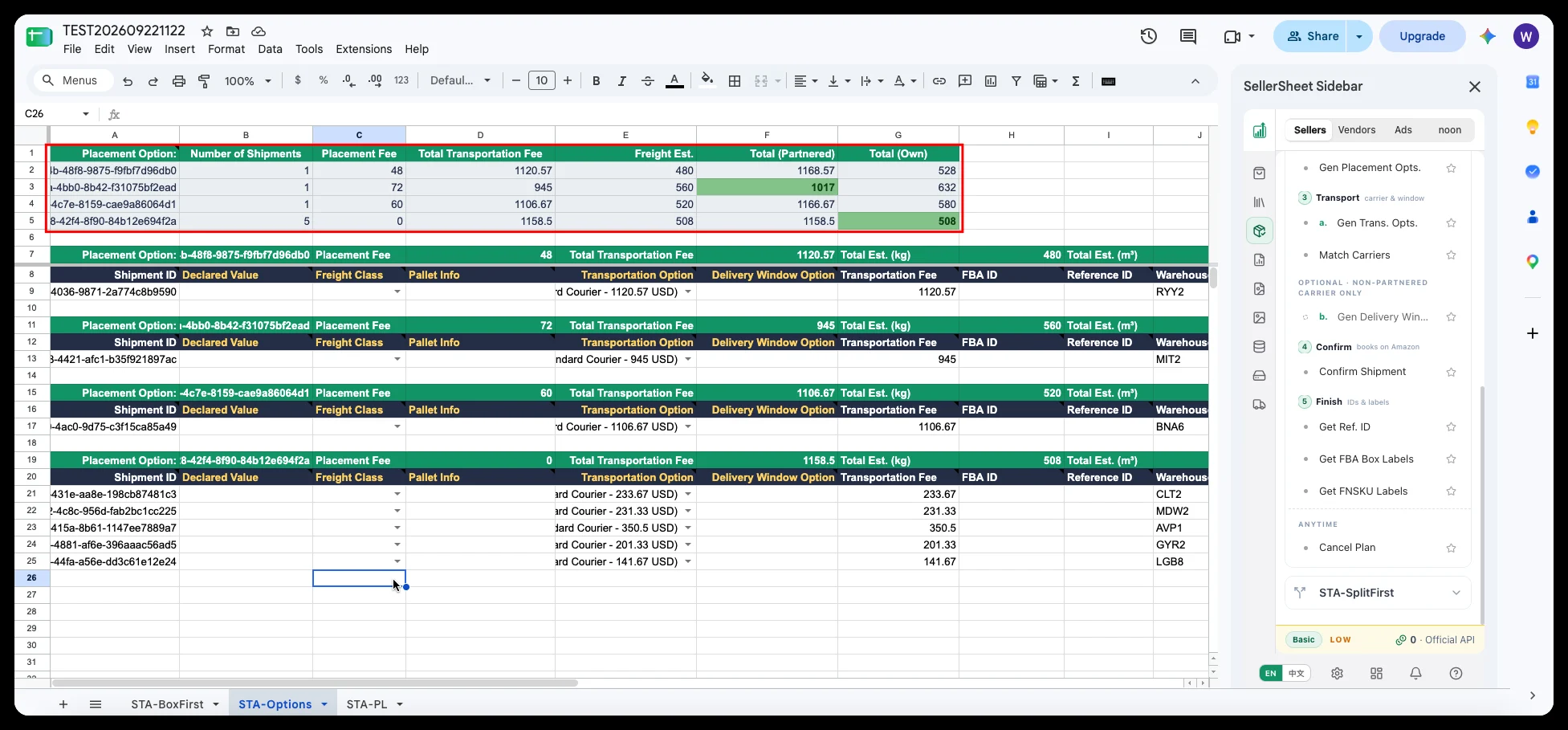
With Amazon's carriers option 2 is cheapest (1,017); with your own freight, option 4 — five destinations — wins (508).
Partnered quotes are in the dropdown. After Gen Trans. Opts., each item in a shipment row's Transportation Option dropdown reads "option ID (carrier type - mode - carrier - price USD)". The one you pick becomes the Transportation Fee and adds up into Total (Partnered).
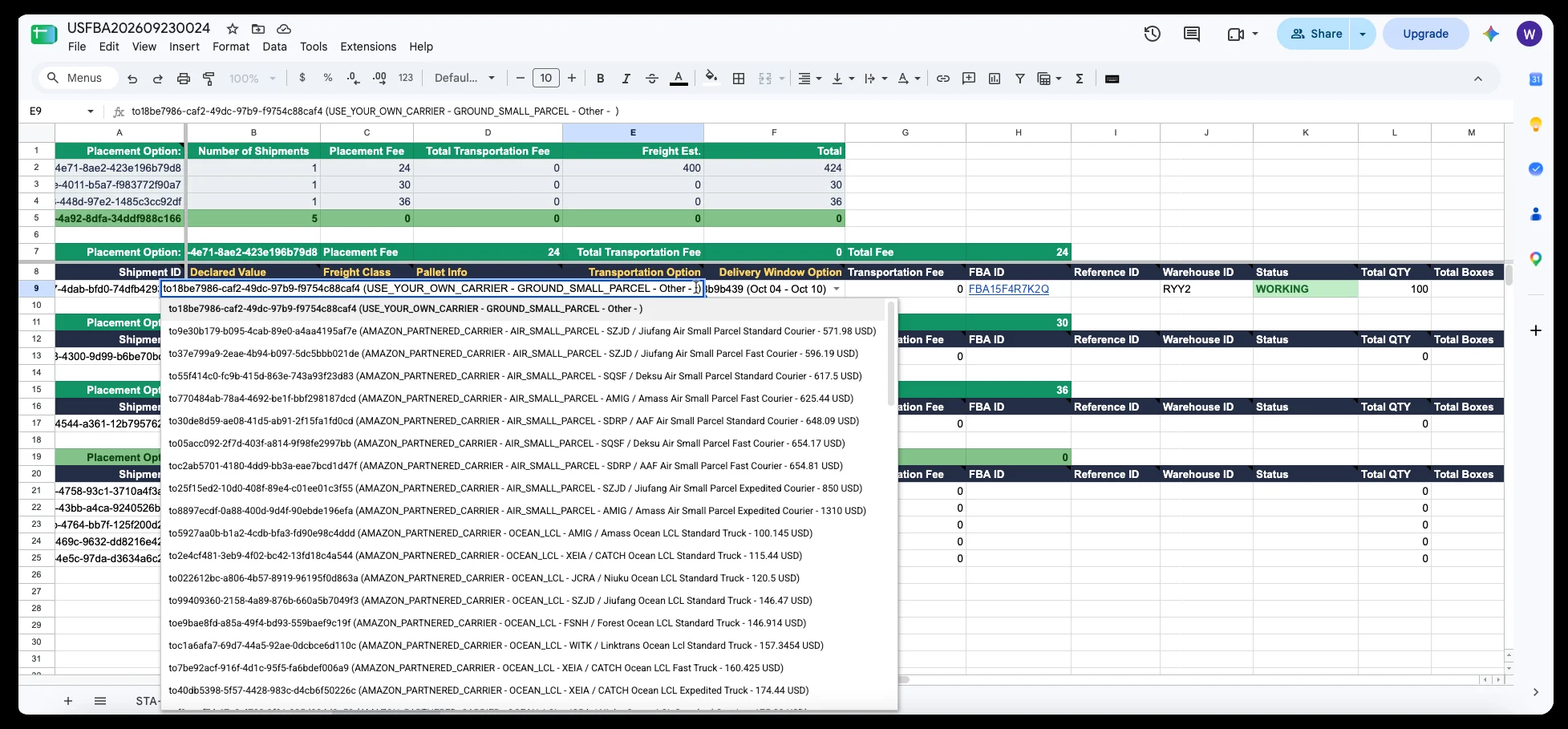
For one shipment, partnered air small-parcel and ocean LCL quotes sit in a single dropdown.
Your own freight takes a rate. Own-carrier items carry no price: type your forwarder's Rate/kg ✎ (or Rate/m³ ✎) on the shipment row and Est. computes the freight from that row's weight or volume, adding up into Total (Own).
A few rules:
- Small parcel with Amazon's carrier needs one carrier for every shipment in the option: pick the first shipment's, then click Match Carriers to align the rest. With your own carrier, shipments may differ.
- Your own carrier also needs a delivery window (click Gen Delivery Window first), or Confirm is refused.
- Once decided, pick the option in progress cell 2, choose the matching transportation option on each of its shipment rows, and click Confirm Shipment.
Pallets: three fields before the quotes
With Pallet Packed = YES on row 9, fill three fields on every STA-Options shipment row before Gen Trans. Opts., or Amazon returns only parcel-style options and no LTL / FTL quote:
| Column | Format | Example |
|---|---|---|
| Declared Value | A plain number (USD) | 1000 |
| Freight Class | Dropdown FC_50 … FC_500 (NMFC class: the lower the density, the higher the class and the rate) | FC_50 |
| Pallet Info | One pallet per line: LxWxHxWeightxQty STACKABLE or NON_STACKABLE | 100x100x150x300x1 STACKABLE |
All three or none on a row.
The destination you want isn't offered?
Placement options expire (the date is in the note on step 2 of the STA tab). Before then, Gen Placement Opts. returns the same set and no new destinations. For a new set, Cancel Plan and start again: Box First is Initiate Plan → Gen Placement Opts.; Split First is just Initiate Plan.
After confirming: labels, packing list, tracking
Once you click Confirm Shipment:
- Box labels: when Amazon returns them at once, the FBA ID in STA-Options becomes a link to the PDF; otherwise click Get FBA Box Labels. The PDF is cropped to M9's size and saved to the plan folder. Only shipments without a link are fetched — to fetch again, delete the link and click.
- FNSKU labels: Get FNSKU Labels makes one per unit (Qty/Box × boxes) at L9's size.
- Inbound PL: the final packing list, one row per box × SKU with image, box ID, FNSKU, MSKU, ASIN, quantity, weight and dimensions — for packing and the warehouse hand-off.
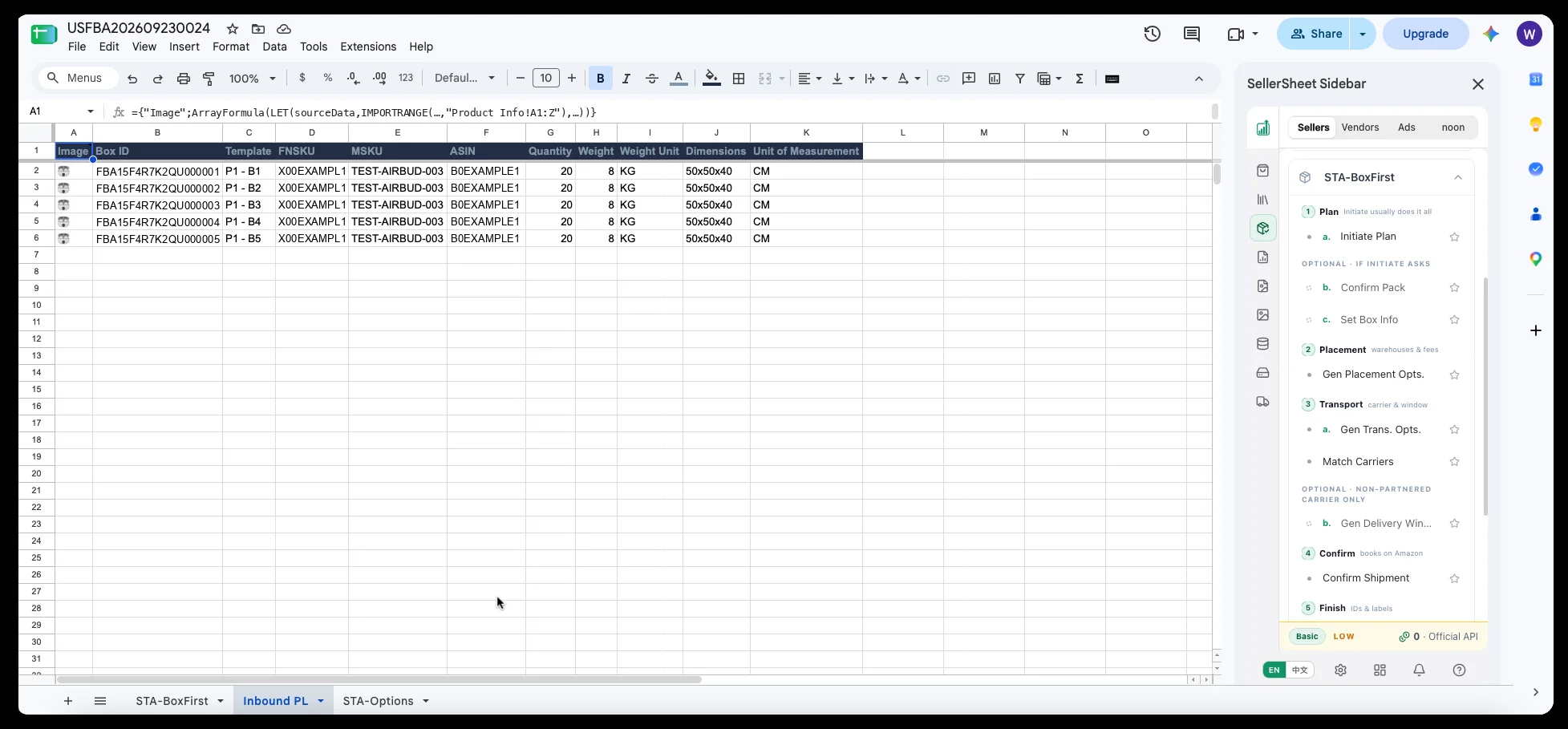
Inbound PL is sorted by box ID, ready to print for the warehouse.
Back on the FBA workbook's Manage Shipments, your row is shipment 1 and each further shipment gets its own row, with Plan Folder, Plan ID, Shipment ID, FBA Label (the PDF) and FBA ID filled in. Carrier is filled from the chosen option and can be edited for your own carrier; Tracking takes the tracking numbers in box order, comma-separated.
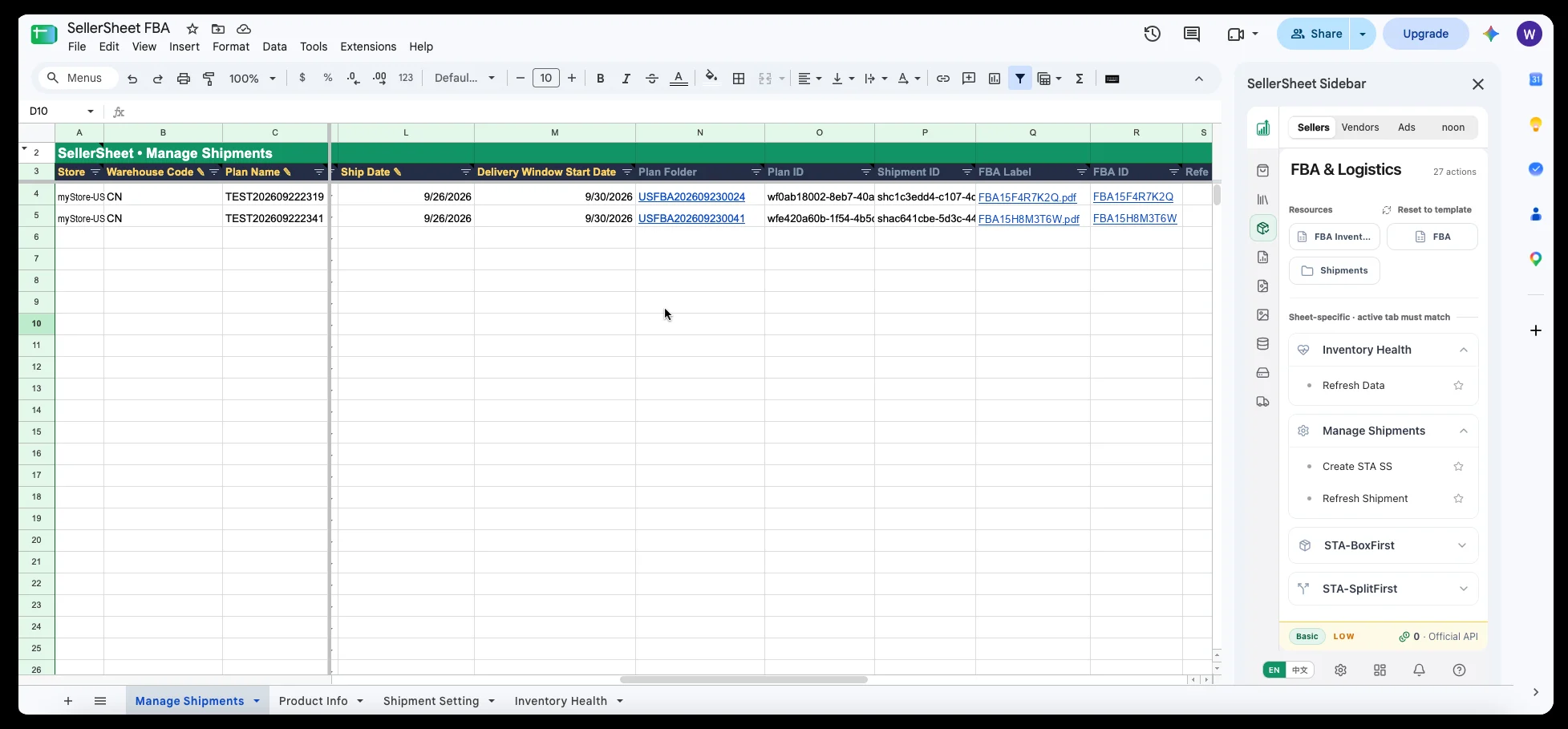
A box-first and a split-first plan, both confirmed, in one register.
Then Manage Shipments › Refresh Shipment pulls the status of every open shipment from Amazon and colors it: UNCONFIRMED → WORKING → READY_TO_SHIP → SHIPPED → IN_TRANSIT → DELIVERED → CHECKED_IN → RECEIVING → CLOSED (or CANCELLED / ABANDONED / DELETED).
Messages you may see
| Message | Why | What to do |
|---|---|---|
This button belongs to the STA-BoxFirst menu … | A button from the other mode's menu | Switch to the matching tab, or use the matching menu |
Pick a placement first … | No placement option chosen in step 2 | Pick one in the dropdown on progress row 6 |
Run "3b. Gen Delivery Window" first … | Own carrier chosen, no delivery window yet | Click Gen Delivery Window, then pick a window in STA-Options |
Transportation option is required for shipment … | A shipment has no transportation option | Pick one on that STA-Options row, or use Match Carriers |
Pallet Packed is YES — fill Declared Value + Freight Class + Pallet Info … | A pallet plan missing its three fields | Fill them on every shipment row, then Gen Trans. Opts. |
Ship Date … is in the past … | The ship date has passed | Use today or later |
Invalid box number format: … | A full-width ~ or a - in a box number | Use a half-width ~, e.g. 1~5 |
All N shipment(s) … already have a label link … | Every label is already fetched | To fetch again, delete that FBA ID link and click |
Labels fetched … saved to Drive for 0/N | Labels came back but could not be saved to the plan folder | Check the plan workbook is in its Drive folder and you can write there |
Can't confirm again / Shipment has status CANCELLED | The plan is already confirmed or cancelled | Start a new plan (in the same workbook, Cancel Plan first) |
Store not found | Store not connected, or written wrong | Use store-country code and check the connection |
From plan to box labels, every choice and every quote stays in the sheet: the next shipment is a copied row with new quantities and the same buttons. The column-by-column reference is in the guide below.
Written by
SellerSheet Team
We build SellerSheet — the plugin that lets your own AI run your Amazon and noon stores: an MCP connection to the official SP-API and Ads API, skills for the daily jobs, and a Google Sheets add-on for review.