Let AI manage every dollar of ad budget
Check live Amazon ad budget consumption, get Amazon's own budget recommendations, and set rules that raise budgets automatically for Prime Day or when performance is good — run by an AI assistant, reviewed in your Google Sheet.
On this page
- Five tools, one job each
- Live budget usage
- Budget rules (automatic increases)
- Shopping-event suggestions
- Suggested budgets and missed opportunity
- Starting budget for a new campaign
- What works where
- Two kinds of rule
- By date or event —
SCHEDULE - By performance —
PERFORMANCE - The routine that works
- Just say it like this
- Good to know
- Put it to work this week
SellerSheet's budget tools let your AI assistant see how much of today's budget is already spent, pull Amazon's own budget recommendations, and set rules that raise budgets automatically during shopping events or while performance stays good. You don't learn any API — you say what you want in plain language, and every change is written to your Google Sheet for you to approve.
Works with SP · SB · SD — Sponsored Products · Brands · Display.
Read the step-by-step guide · Connect your AI client
Five tools, one job each
Each tool shows the ad types it supports and the access it needs.
Live budget usage
ads_campaigns_budget_usage / ads_portfolio_budget_usage — SP · SB · SD · Portfolios — Read-only
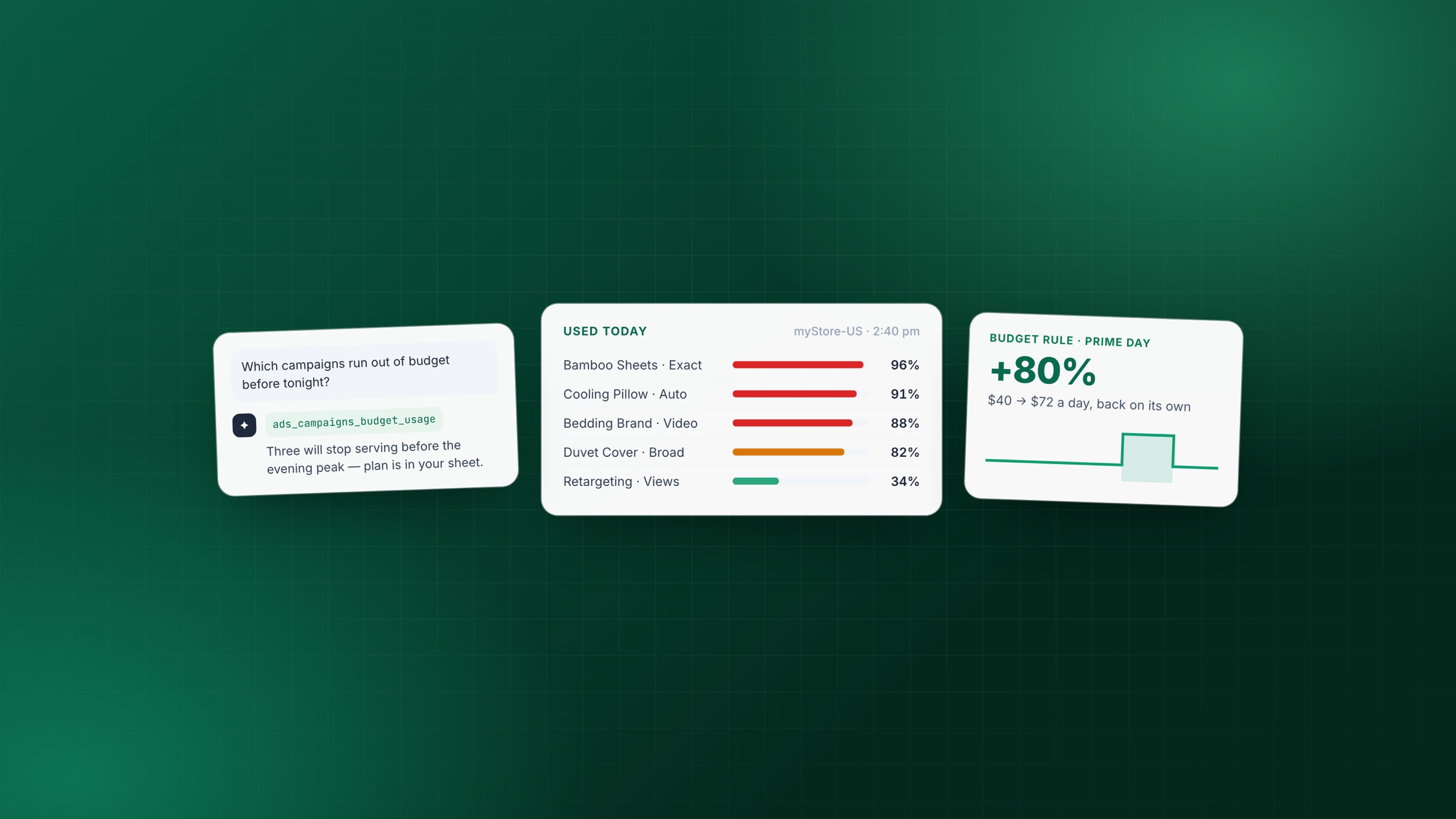
How much of today's budget is already spent, and which campaigns are about to stop serving. This is live intraday data that daily reports cannot give you — check it before you touch any budget.
- Up to 100 campaigns (or portfolios) per check.
- Returns the percentage consumed, the budget it is measured against, and the time Amazon last evaluated it — the figure is fresh, not second-by-second.
- A portfolio only reports a meaningful percentage when it has a budget cap.
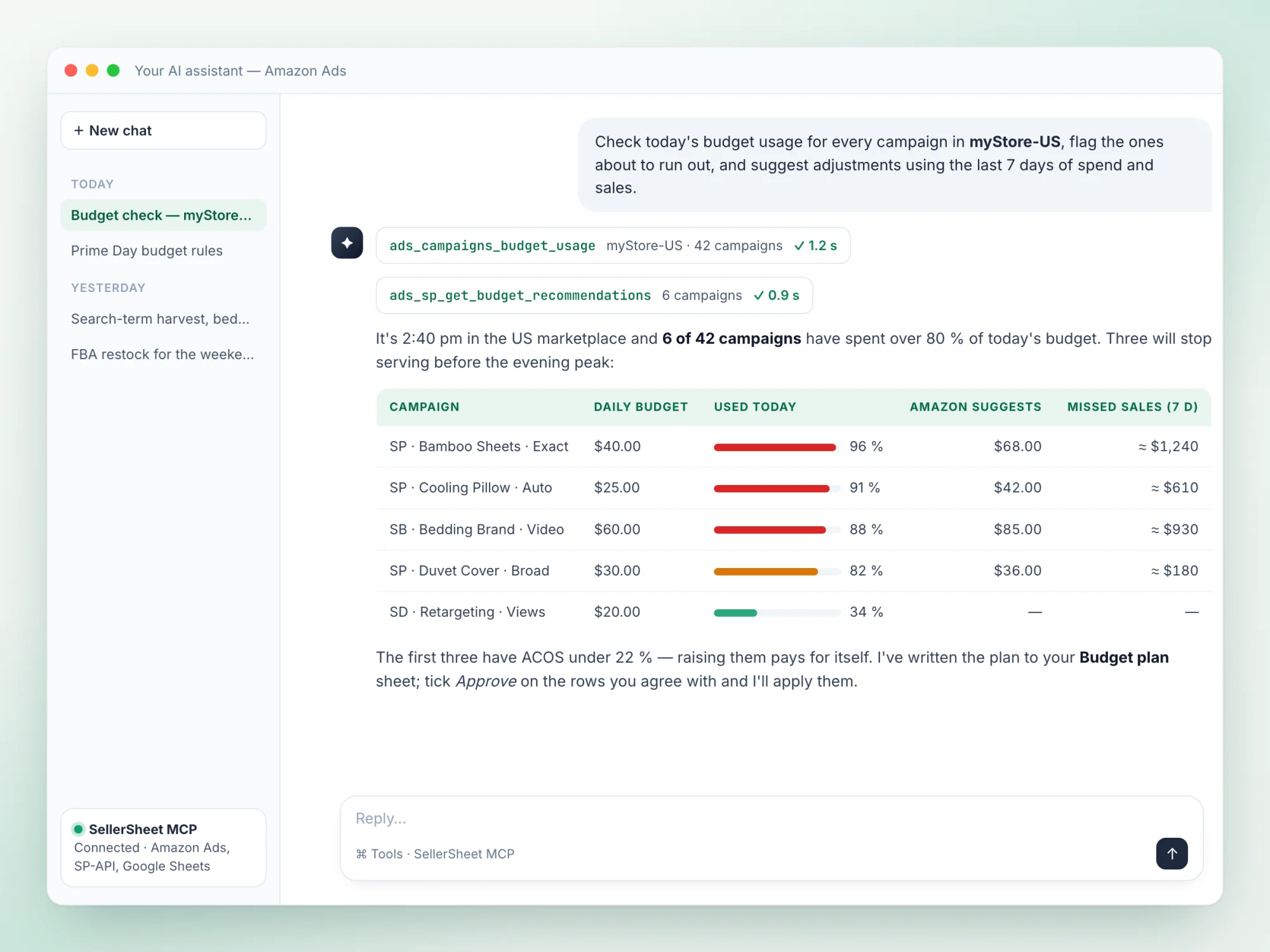
One question, two read-only calls: live usage for 42 campaigns and Amazon's own suggestion for the six that are running hot.
Budget rules (automatic increases)
ads_get_budget_rules_for_advertiser / ads_create_budget_rules_for_campaigns — SP · SB · SD — Changes need write access
Set a rule that raises a campaign's daily budget by a percentage — over a date range, during an official Amazon shopping event, or while a performance metric beats your threshold. One rule can serve many campaigns, and the budget reverts on its own when the window closes.
- Viewing rules needs read access; creating, changing or attaching them needs Ads write access.
- Up to 25 rules per request; increases are percentages only.
- Amazon has no delete — to stop a rule, pause it or detach it from the campaign.
Shopping-event suggestions
ads_get_budget_rules_recommendation — SP · SB — Read-only
Amazon lists the shopping events coming up for your campaign — the event, its dates, and the increase it suggests. Turn a suggestion straight into a rule and your budget is ready before the traffic arrives.
- One campaign per request; the event it returns plugs directly into a new rule.
- Sponsored Display has no event suggestions — Amazon does not offer them. For Sponsored Brands they work in the US but are not yet available in some marketplaces (we have confirmed UAE and Australia are not supported).
- An empty list simply means no events are coming up — that is normal, not an error.
Suggested budgets and missed opportunity
ads_sp_get_budget_recommendations / ads_sb_get_budget_recommendations / ads_get_sd_budget_recommendations — SP · SB · SD — Read-only
Amazon's own estimate of the impressions, clicks and sales you are forfeiting at your current budget, together with the budget it suggests instead. There is one tool per ad type and the AI picks the right one.
- Up to 100 campaigns per request.
- Read it next to live usage: a campaign that never reaches its cap does not need a raise, however large the suggestion.
Starting budget for a new campaign
ads_get_budget_recommendation — SP — Read-only
Before the campaign exists, describe the products and targeting and Amazon returns a daily budget that should not throttle delivery in week one — so a new campaign is not starved before it has data.
- Sponsored Products only.
- Use it as the create-time budget, then watch live usage once delivery starts.
What works where
✓ supported · ◐ some marketplaces only · — not offered by Amazon
| Tool | SP | SB | SD | Portfolios | Access | Timing |
|---|---|---|---|---|---|---|
| Live budget usage | ✓ | ✓ | ✓ | ✓ | Read | Today, live |
| Budget rules | ✓ | ✓ | ✓ | — | Read / Write | Starts when its window opens |
| Shopping-event suggestions | ✓ | ◐ | — | — | Read | Brands: US yes, UAE and Australia not yet |
| Suggested budgets | ✓ | ✓ | ✓ | — | Read | Based on recent delivery |
| Starting budget for a new campaign | ✓ | — | — | — | Read | Before you create the campaign |
Two kinds of rule
Tell the AI which one you want — the difference is what triggers the increase.
By date or event — SCHEDULE
"From December 1 to 15, raise budget 50%." Or "during Prime Day, raise it 80%." Made for peak season, official events and weekend traffic — the date arrives, the budget goes up, the window ends, it goes back.
Works on all three ad types. Event-based rules get their dates from Amazon's shopping-event suggestions.
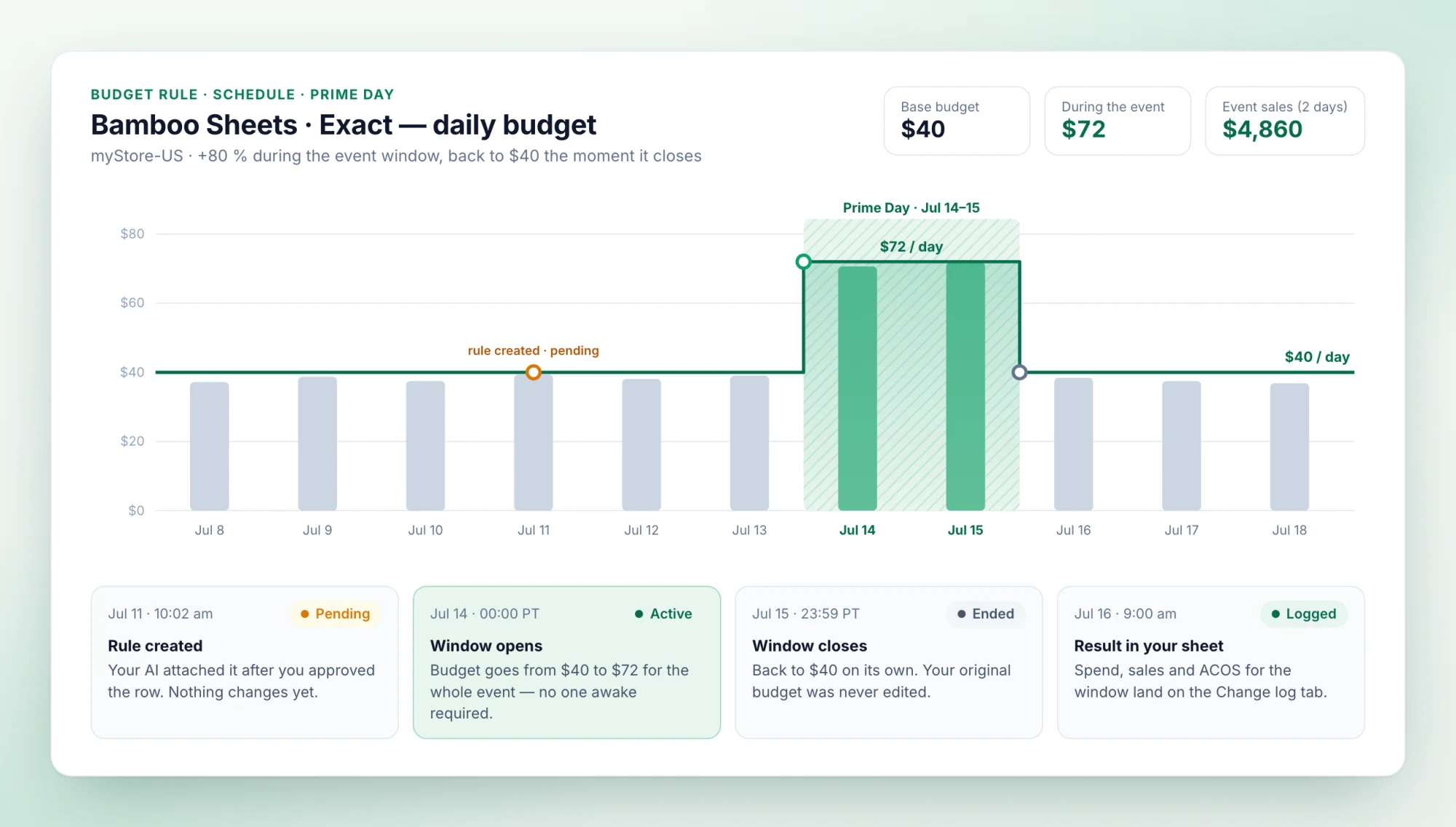
A schedule rule waits as Pending, raises the budget for the event window only, and hands back the original budget when the window closes.
By performance — PERFORMANCE
"While ACOS stays under 20%, raise budget 25%." The campaign earns its extra budget: when the metric stops qualifying, the increase stops. Amazon measures it over the last 7 days for sellers.
Available metrics differ by ad type — Products and Display: ACOS, click-through rate, conversion rate, ROAS. Brands: top-of-search impression share, new-to-brand share, ROAS.
The routine that works
Look at the data, then the recommendations, and only then change a budget — the AI follows this order for you.
- Check live usage — find the campaigns about to hit their cap, and the ones that cannot spend what they have.
- Compare with Amazon's numbers — how much is being missed, and what budget does Amazon suggest instead?
- Write the plan to your sheet — the AI writes what it intends to change, and waits for your approval.
- Set the rules — hand the recurring increases (events, peak season, performance thresholds) to budget rules instead of watching them yourself.
- Check again while the rule runs — confirm the extra budget is actually turning into impressions and sales.
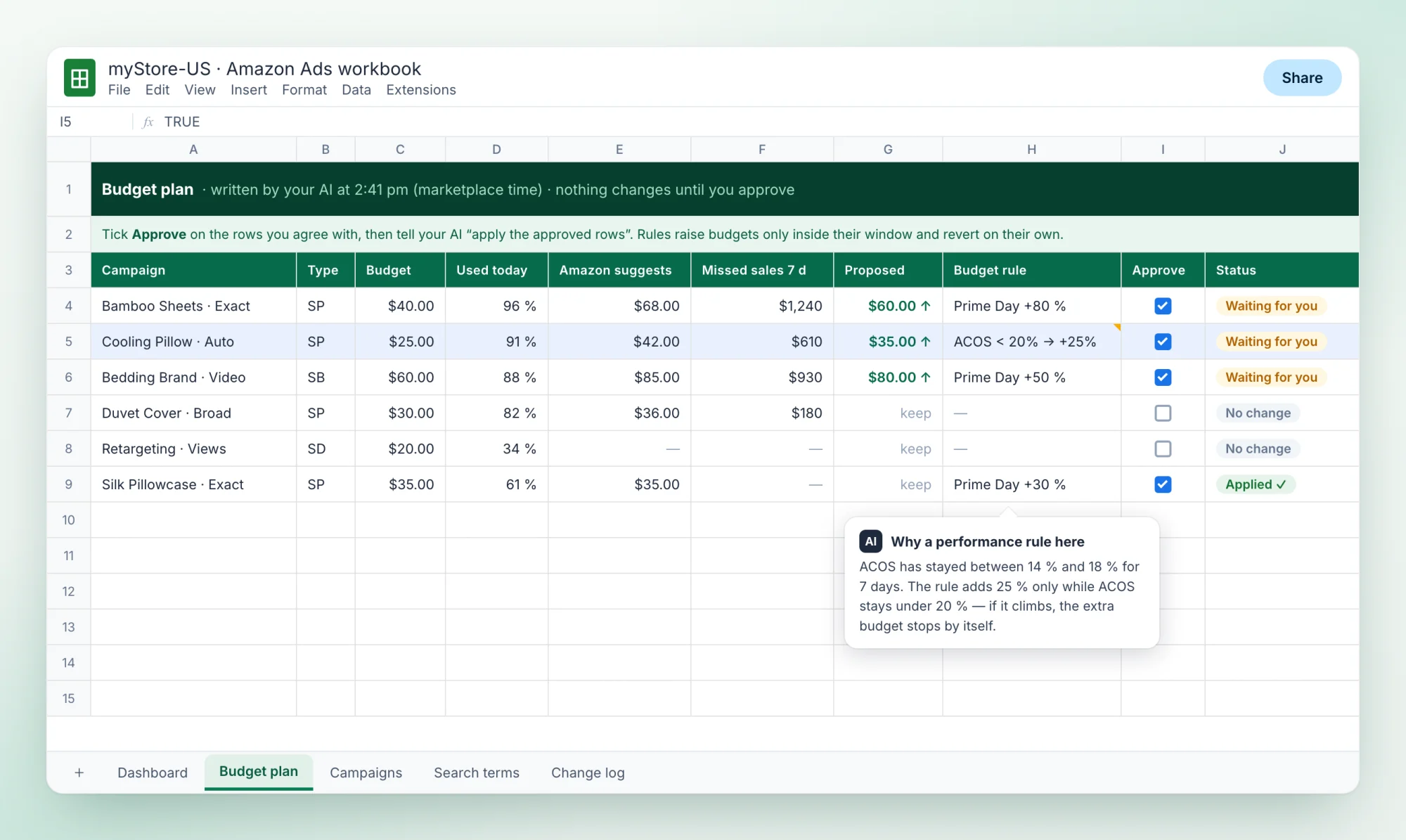
Step 3 in practice: the plan lands in your sheet first. Nothing changes on Amazon until you tick Approve.
Just say it like this
Copy a prompt and swap in your own store — the format is store name and marketplace, like myStore-US.
Daily check
"Check today's budget usage for every campaign in myStore-US, flag the ones about to run out, and suggest adjustments using the last 7 days of spend and sales."
Event prep
"Which official shopping events are coming up for myStore-US? Using Amazon's suggested percentage, create a budget rule for each of my main campaigns and attach it — write the plan to my sheet first."
Reward the winners
"For my bedding Sponsored Products campaigns in myStore-US, add a performance rule: raise budget 25% while ACOS stays under 20%. Show me the plan before you create it."
New product
"I'm about to launch an auto-targeting Sponsored Products campaign for B0XXXXXXXX — ask Amazon what daily budget it recommends to start with."
Is a raise worth it?
"If I raised budgets on my Sponsored Brands campaigns in myStore-US, how many more impressions and sales would I get? Put each campaign's suggested budget and missed opportunity in a table."
Good to know
- Rules only ever raise, never lower. A rule adds a percentage inside the window you set. Outside that window your original budget applies, untouched — nothing is permanently changed.
- You approve before anything changes. Viewing usage and recommendations needs only read access. Creating or changing a rule needs Ads write access, and the AI writes its plan to your sheet for approval first.
- A new rule waits — that is normal. A rule shows as pending until its window opens, and in our live testing it took a few hours past midnight in the marketplace's own timezone to become active. Do not re-create a rule that has not turned active yet on event morning — you would end up with two, and their increases add together.
- A wrong request fails cleanly. If the AI sends something malformed it is refused before anything changes, with the exact field named — so it corrects itself and retries, instead of leaving a half-applied change on your account.
- Rules are attached one campaign at a time. Amazon's bulk-attach shortcut is not open to third-party tools — we tested it across three ad accounts and marketplaces. The AI attaches each campaign individually and the result is identical.
- Everything runs on the marketplace's clock. Budgets reset and rules are evaluated at the start of the day in the ad profile's own timezone — not yours. Worth remembering when you sell in a marketplace hours away from where you sit.
Put it to work this week
Connect Claude, ChatGPT or any MCP client to your Amazon account, then ask it to check today's budget usage. The step-by-step guide walks through every workflow on this page.
Written by
SellerSheet Team
We build SellerSheet — the plugin that lets your own AI run your Amazon and noon stores: an MCP connection to the official SP-API and Ads API, skills for the daily jobs, and a Google Sheets add-on for review.
Do it yourself
Let an AI agent watch your Amazon PPC budget usage, apply Amazon's budget recommendations, and set schedule- and performance-based budget rules for Prime Day and peak days — all from Google Sheets via SellerSheet MCP.
Connect the SellerSheet MCP server to Claude Code, Claude Desktop, Cursor, Windsurf, Coze and Codex, and manage your Amazon business directly from your own AI agent.