
How to Fetch Live Amazon Listings in Google Sheets
See any Amazon listing in Google Sheets — your own by SKU, or any catalog page by ASIN — to audit status and issues, check that Amazon took your change, and copy a listing into the Publish Queue.
TL;DR
- The Listing Snapshot tab shows a listing as a row: your own by SKU, or any Amazon catalog page by ASIN.
- Fetch by SKU gives you what you submitted, with its Status and Issues. Fetch by ASIN gives you what shoppers see, with its category and best-seller rank.
- Put the same product on both kinds of row to check whether Amazon took your change. Then copy the SKU, product type or JSON straight into the Publish Queue.
Series: manage Amazon listings in Google Sheets
Overview · 1 All your SKUs · 2 Live listings · 3 Competitor research · 4 Selling eligibility · 5 Write listings with AI · 6 Bulk create & revise
In Seller Central you open listings one at a time. Here every SKU's status and issues sit in one table, next to what shoppers really see. In this guide, the store myStore-US sells earbuds under the brand myBrand. You check three of its listings, look at a competitor's page, and check whether a new title went live.
Before you start
- Connect your Amazon store at sellersheetai.com under Settings → Stores & Marketplaces.
- Install the SellerSheet sidebar. See Install & first sync.
- In the sidebar's Catalogs panel, click Catalog under Resources to open the SellerSheet Catalog spreadsheet. Go to the Listing Snapshot tab and expand the Listing Snapshot group in the sidebar. Its buttons work only while that tab is open.
The tab
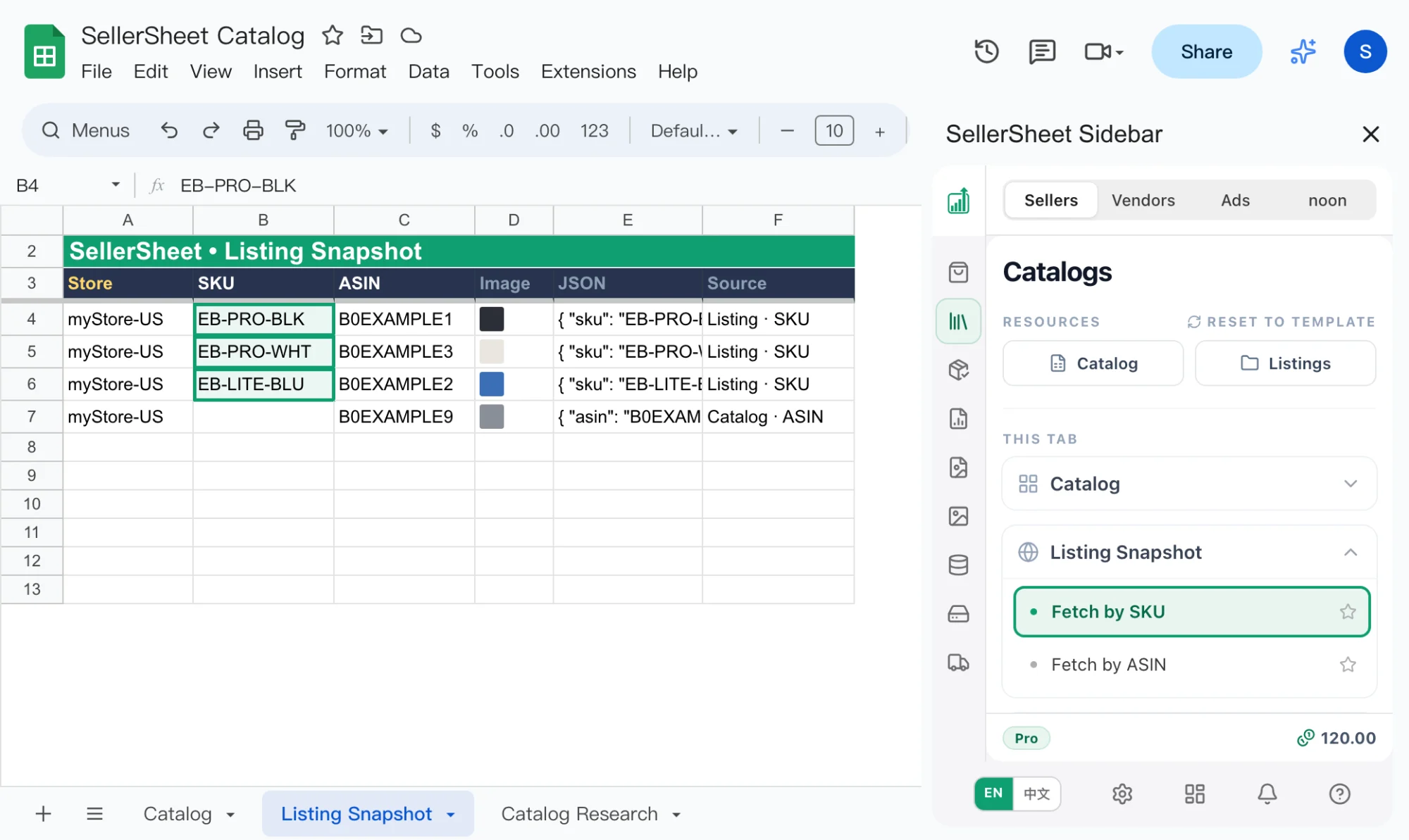
- You type A Store, and either B SKU or C ASIN. Everything else is filled by a fetch.
- D Image shows the main image. If a row can't be fetched, the reason is written here instead.
- E JSON holds Amazon's whole answer, including attributes that have no column of their own.
- F Source says which fetch filled the row:
Listing · SKUorCatalog · ASIN.
Each row names its own store, so one tab can hold rows of several stores and marketplaces. You change listings on another tab, the Publish Queue (part 6).
Lesson 1 — Audit your own listings (Fetch by SKU)
Fill the rows
From row 4, type myStore-US in column A and one SKU per row in column B: EB-PRO-BLK, EB-PRO-WHT, EB-LITE-BLU. To check your whole catalog, copy columns B and C (Store, SKU) of the Catalog tab into columns A and B here.
Click Fetch by SKU
Click Listing Snapshot › Fetch by SKU. Each row fills from your listing, with its ASIN in column C. Only rows whose JSON cell is empty are fetched. With many rows, a click can stop after about five minutes; click again to continue.
Read the rows
| Column | What it tells you |
|---|---|
| Status | BUYABLE (shoppers can buy it) and DISCOVERABLE (shoppers can find it). Blank means neither. NOT_ACCEPTED means Amazon never accepted the listing. |
| Issues | One line per issue, such as ERROR 90220: 'Item Highlight' is required but missing. |
| Last Updated | When Amazon last changed the listing. |
| Product Type | The product type to use on the Publish Queue for this SKU. |
| Parentage Level, Parent, Variation Theme, Color, Size | Where the SKU sits in its variation family. Parent is the parent SKU. |
| Brand Name … Generic Keyword | The listing copy, in the Publish Queue's order, one bullet per line. |
| Fulfillment Channel Code, Quantity, Your Price | The offer. DEFAULT means you ship it; AMAZON_NA, AMAZON_EU and so on mean FBA. |
| Main Image URL … Swatch Image URL | Every image slot as a link. |
Find the listings that need work
Select row 3 and turn on a filter (Data › Create a filter). On Issues, choose Filter by condition › Is not empty; or filter Status to blank. That leaves only the SKUs with a problem.
Lesson 2 — Look at any ASIN (Fetch by ASIN)
- On a new row, type
myStore-USin column A and the ASIN in column C. Leave column B (SKU) blank. The ASIN can be yours or a competitor's. - Click Listing Snapshot › Fetch by ASIN.
The row fills from Amazon's catalog page, which is what shoppers see. Columns that only a catalog page has are filled too: Browse Node (the category Amazon files it under), BSR Category and BSR Rank. Status, Issues and the offer stay blank, because they belong to a seller's listing.
Lesson 3 — Check whether Amazon took your change
An accepted result in the Publish Queue means Amazon accepted your submission. But Amazon decides what the catalog page shows, and it may keep another value there, such as one from another seller or its own.
Put the product on two rows: one with the SKU (Fetch by SKU) and one with only the ASIN (Fetch by ASIN).
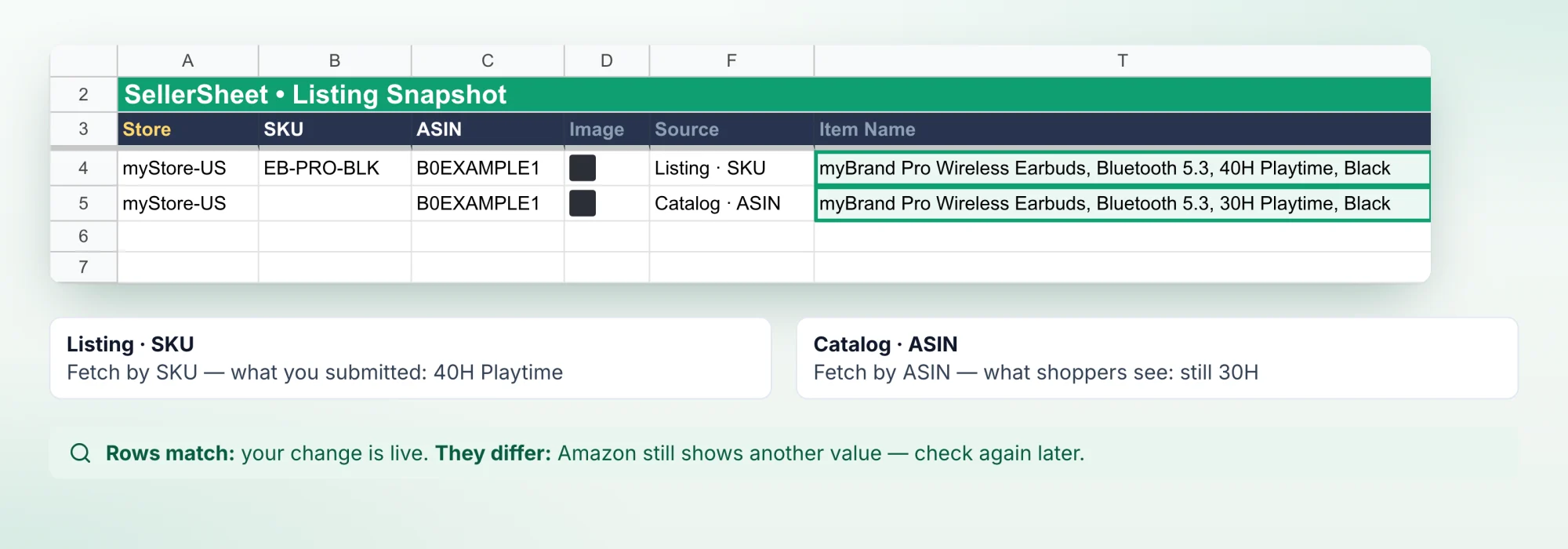
If the copy matches, your change is live. If it doesn't, Amazon still shows another value. Read the SKU row's Issues. To check again later, clear the ASIN row's JSON cell and click Fetch by ASIN.
Lesson 4 — Take a listing into the Publish Queue
Listing Snapshot only reads; you change a listing on the Publish Queue. The tab hands over what the Publish Queue needs:
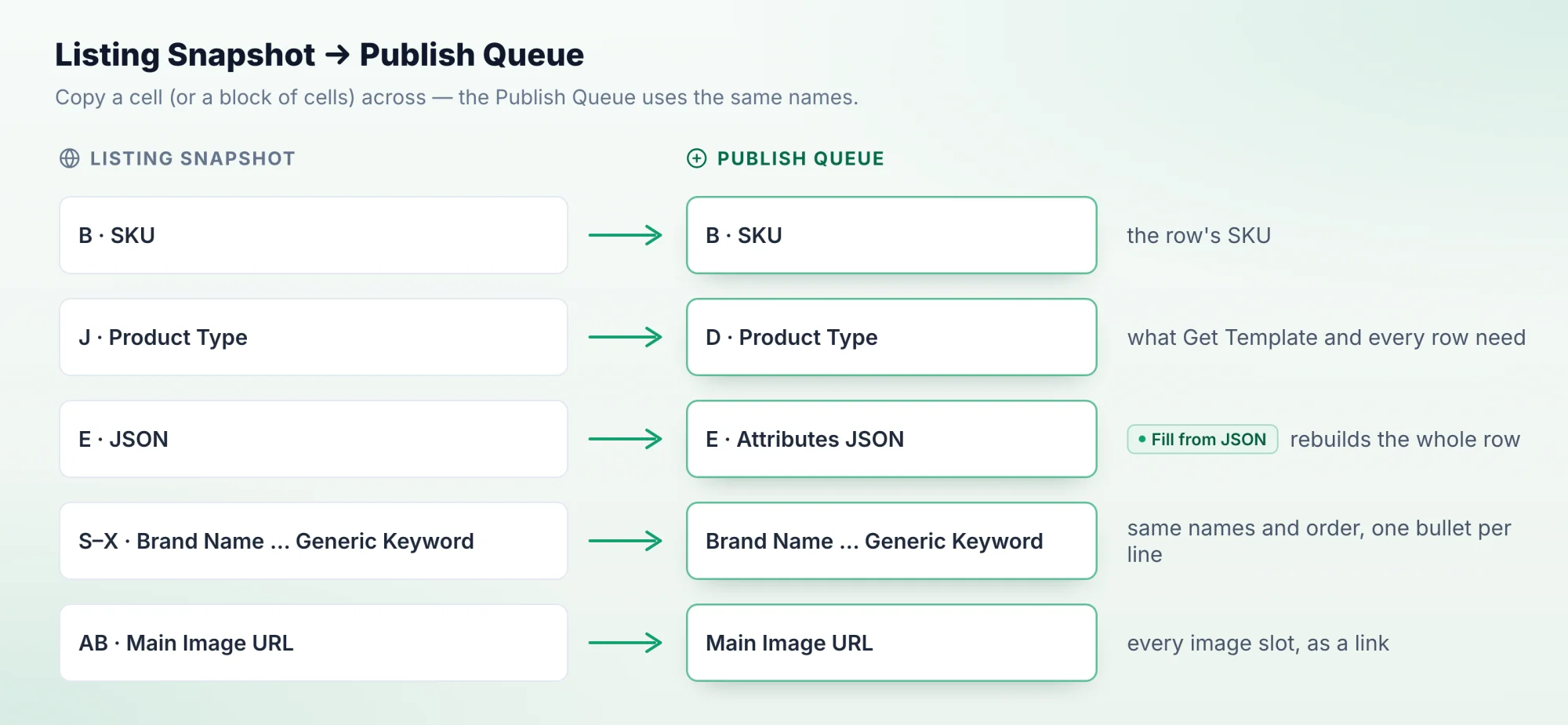
- SKU and Product Type are all Get Template needs. A
PARTIAL_UPDATErow (change only the cells you fill) also needs the ASIN in Merchant Suggested ASIN. - JSON: paste it into the Publish Queue's Attributes JSON and click Fill from JSON. The whole row is rebuilt from it, and an empty SKU or Product Type is filled too. JSON from an ASIN row has no SKU, so type your own — and if it is a competitor's page, replace their product ID with yours before you submit.
- Copy and image URLs use the Publish Queue's names and order, one bullet per line, so you can paste them straight across.
Copy a listing to another marketplace
This happens on the Publish Queue tab. It sends every row to the store in A3, in the language in B3, and its fetch keeps only that store's and language's values. So you build the template for the new marketplace, fetch from the old one, then switch:
- Set A3 to the new store,
myStore-UK, and B3 to en_GB. Type the product type in D7 and click Get Template: the columns are now the UK ones. - Set A3 back to
myStore-USand B3 to en_US. From row 7, type the SKUs in column B andUPDATEin column C, then click Publish Queue › Fetch by SKU. - Set A3 to
myStore-UKand B3 to en_GB again. - Change what differs: the price and currency, and Fulfillment Channel Code for FBA (
AMAZON_NAbecomesAMAZON_EU). - Click Validate (Preview) and fix what Amazon lists. Then click Create/Replace/Del. or Submit Feed.
If the SKU already sells in that marketplace, UPDATE replaces that listing. For a marketplace in another language, translate the copy first with Translate Listing (AI).
Tricks
- Refresh a row: clear its JSON cell and click the fetch again. Rows with JSON are never fetched again, so a second click only fills the new rows.
- A row that failed says why in its Image cell, for example
Not fetched: …. Its JSON stays empty, so the next click retries it. - Compare marketplaces: add one row per store for the same SKU (
myStore-US,myStore-UK) and read them side by side. - Everything is in the JSON: an attribute without its own column is still in column E. Search the cell (Ctrl+F, ⌘+F on a Mac) for its name.
Frequently asked questions
What is the difference between Fetch by SKU and Fetch by ASIN?
Fetch by SKU reads your own listing — what you submitted — with its status, issues, price and stock. Fetch by ASIN reads Amazon's catalog page — what shoppers see — for any ASIN, yours or a competitor's, with its category and best-seller rank.
How do I refresh a row?
Clear its JSON cell and click the fetch again. A row is fetched only while its JSON cell is empty, so a second click never overwrites rows you already have.
Why does a row say "Not fetched" in the Image column?
The fetch failed for that row and the reason is written in its Image cell, for example a SKU that does not exist in that store. The JSON cell stays empty, so the next click tries the row again.
What does NOT_ACCEPTED mean in the Status column?
Amazon never accepted the listing, so it holds no listing data for the SKU — only issues. The Issues column says why. Fix them in the Publish Queue and submit the SKU again.