
How to Bulk Create & Revise Amazon Listings in Google Sheets
Create, update and delete Amazon listings in bulk from Google Sheets — Seller Central's template columns, with Amazon's check before anything goes live.
TL;DR
- The Publish Queue tab is Seller Central's category template inside Google Sheets: same columns, one row per SKU.
- Get Template builds the columns for a product type. You fill the rows — or fetch them from a live listing — and choose each row's Operation Type:
UPDATE,PARTIAL_UPDATE,PATCH-DELETEorDELETE. - Validate (Preview) has Amazon check the rows before anything goes live. Create/Replace/Del. publishes up to 20 rows at once; Submit Feed sends up to 25,000. Results land in the Submission Log tab.
Series: manage Amazon listings in Google Sheets
Overview · 1 All your SKUs · 2 Live listings · 3 Competitor research · 4 Selling eligibility · 5 Write listings with AI · 6 Bulk create & revise
This guide follows one example from start to finish. The store is myStore-US and the brand is myBrand. You create two new listings for earbuds, change a price, take a SKU out of its variation family and delete an old SKU, all from one sheet.
If you know Seller Central's template, you know this sheet
Each step of the flat-file workflow has a counterpart on the Publish Queue tab:
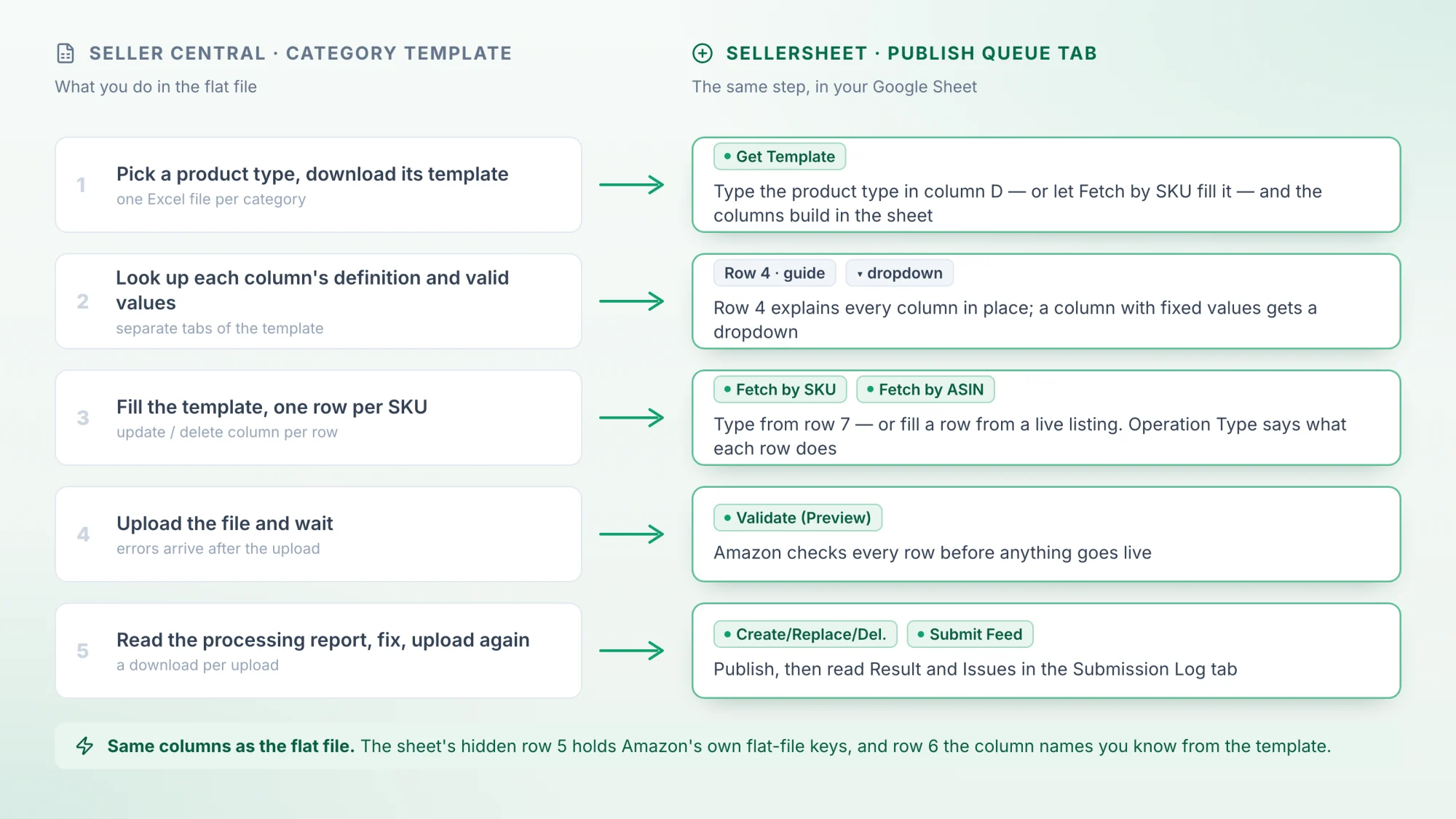
| In Seller Central's template | On the Publish Queue tab |
|---|---|
| Download the template for a category | Get Template builds the columns for the product types in column D |
| Required columns | Gold names on row 6 |
| Definitions and valid values | The row-4 guide above each column; a dropdown where the values are fixed |
| The update / delete column | Operation Type, column C: Update → UPDATE, PartialUpdate → PARTIAL_UPDATE, Delete → DELETE. PATCH-DELETE has no flat-file twin. |
| Export your listings, edit, re-upload | Fetch by SKU fills a row from your live listing |
| Upload, then read the processing report | Validate (Preview), then Create/Replace/Del. or Submit Feed; read the result in Submission Log |
Why switch
- Validate instead of upload, wait, download. In Seller Central you find out which attributes a new product type requires by uploading the flat file, waiting, and downloading the processing report — then doing it again. Validate (Preview) gives the same answer in the Submission Log within moments, row by row, and publishes nothing. For a new listing, fill what you know and validate: Amazon's list of missing attributes tells you what is left.
- Three flat-file accidents are blocked before anything is sent: a blank operation (never treated as a full update), a partial update without the ASIN (which can create a new listing), and one SKU on two rows. See If a row is blocked.
- Your live listing, fetched into the row. No export and re-import: Fetch by SKU fills a row with what is on Amazon now.
Before you start
- Connect your Amazon store at sellersheetai.com under Settings → Stores & Marketplaces.
- Install the SellerSheet sidebar. See Install & first sync.
- Open the SellerSheet Catalog spreadsheet from the sidebar's Catalogs panel (under Resources) or from your SellerSheet folder in Drive. Go to the Publish Queue tab and expand the Publish Queue group in the sidebar. Its buttons work only while that tab is open.
The tab, row by row
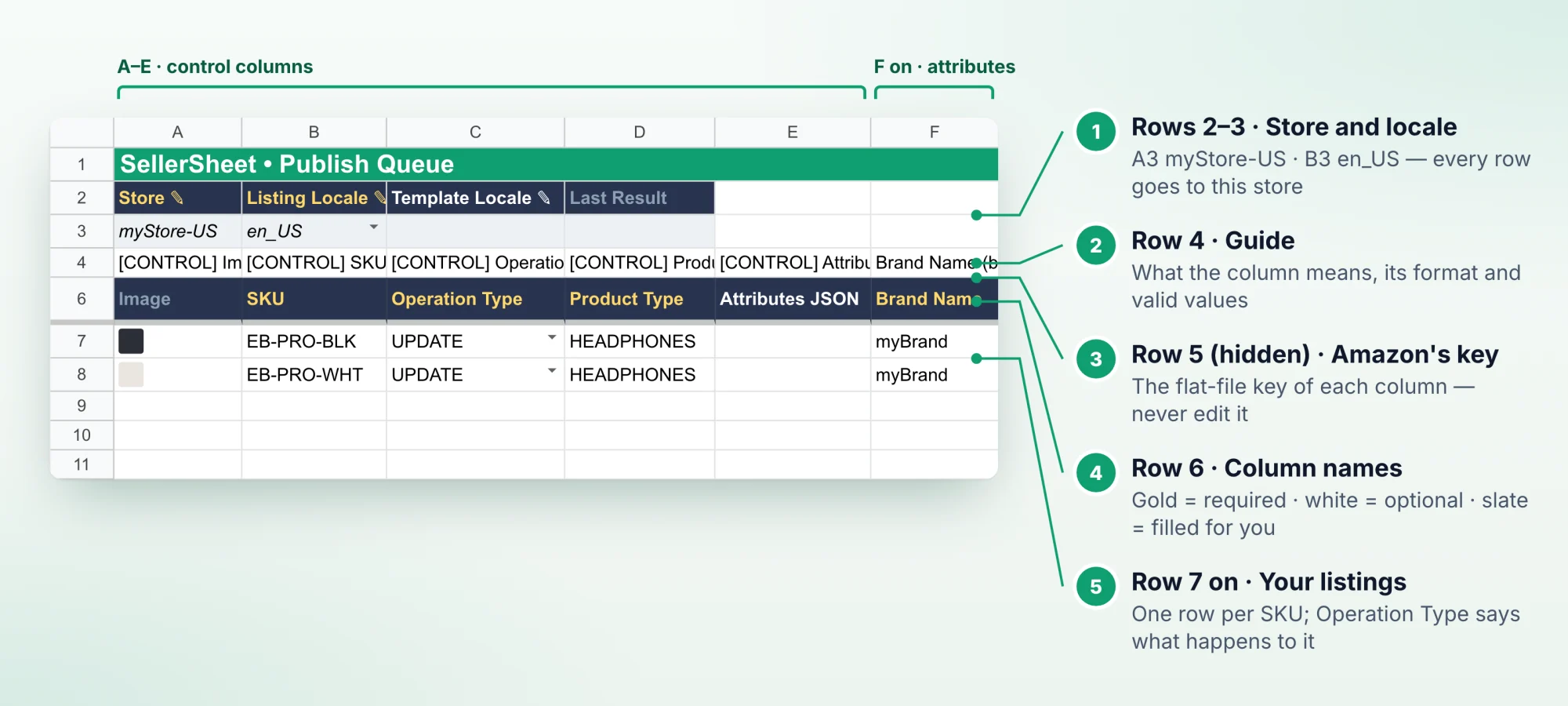
- A3 Store and B3 Listing Locale apply to every row. C3 Template Locale sets the language of the guides; leave it blank to use B3.
- D3 Last Result shows a summary of the last Validate or publish, such as
✓ Validate OK · 2 rows. - Row 6 names: gold = required, white = optional, slate = filled for you.
- Columns A–E are the same on every template: Image (filled for you), SKU, Operation Type, Product Type and Attributes JSON.
Lesson 1 — Create new listings (UPDATE)
You will list two new SKUs, EB-PRO-BLK and EB-PRO-WHT, under product type HEADPHONES.
Set the store and locale
Type myStore-US in A3 and pick en_US in B3.
Get the template
Type the SKUs in B7:B8, UPDATE in C7:C8 and HEADPHONES in D7:D8. Then click Publish Queue › Get Template.
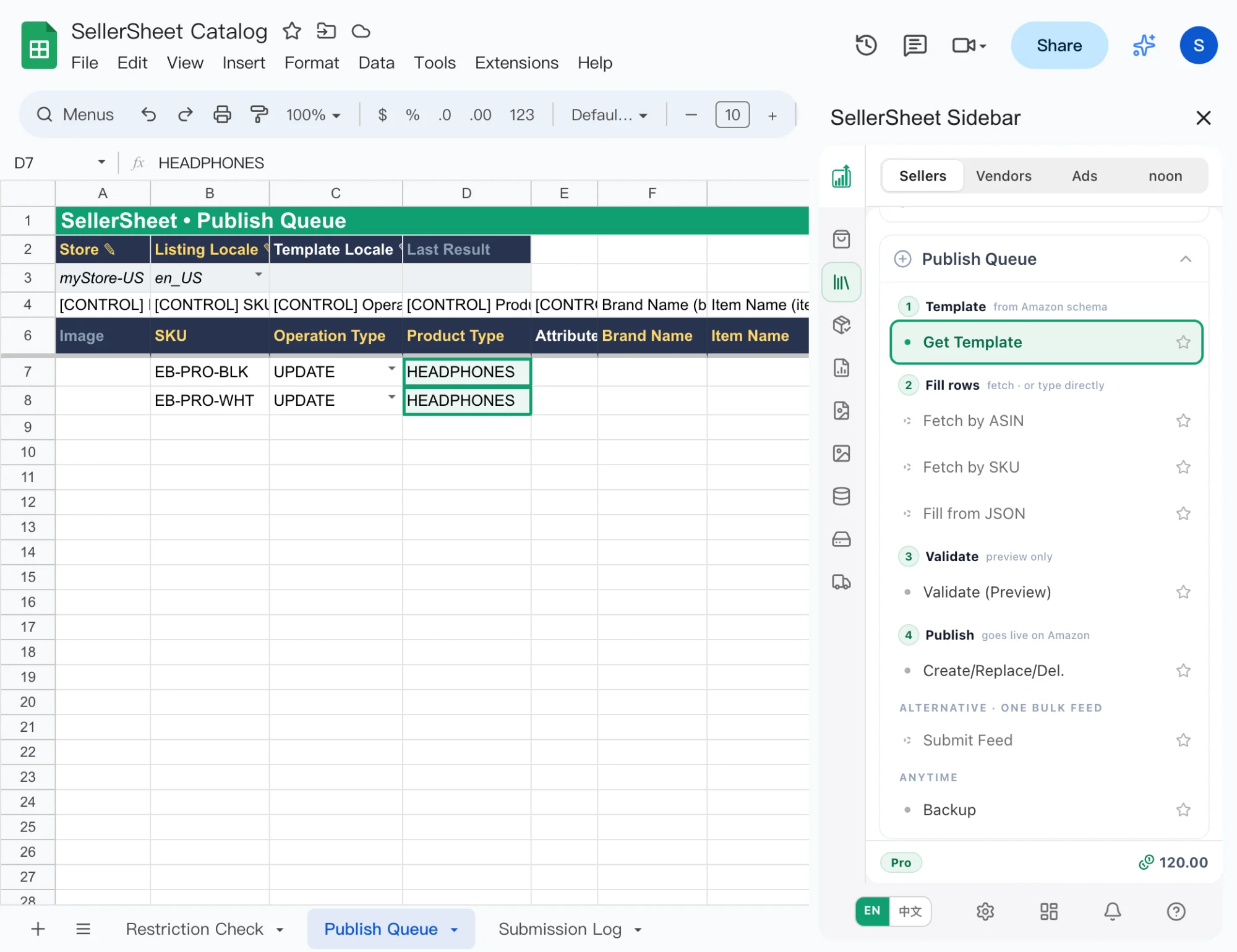
The HEADPHONES columns now start at column F, with a guide on row 4 and their names on row 6. Required names are gold.
- Get the template first, then fill. A re-run keeps each row's SKU, Operation Type and Product Type (columns B–D) but clears every other cell of the rows below.
- Several product types? Put a different one on each row. Get Template merges their columns into one sheet.
- Not sure of the product type? Let Amazon fill it in. See the trick.
Fill the rows
Fill every gold column. On HEADPHONES these are Brand Name, Item Name, Item Highlight, Bullet Point, Product Description and Generic Keyword. Scroll right for Item Condition, Fulfillment Channel Code, Country of Origin and Dangerous Goods Regulations. Then add one product ID.
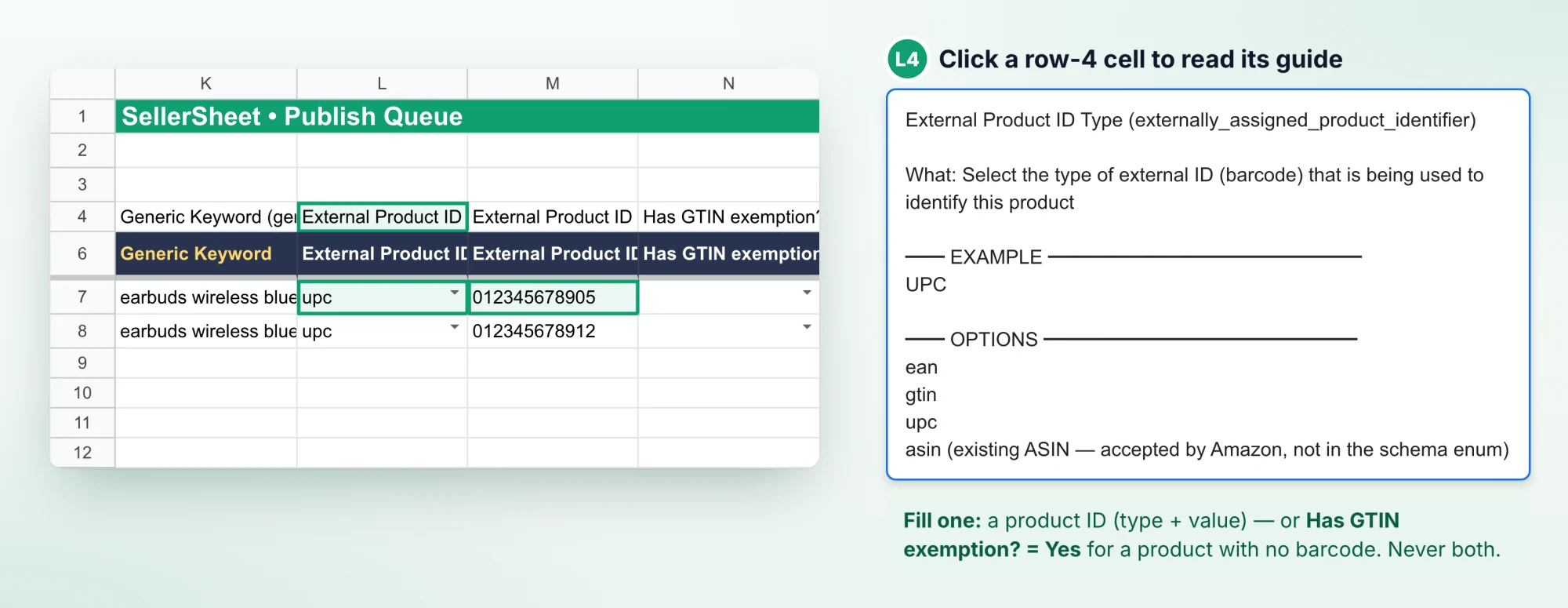
- Row 4 is the manual. Click a row-4 cell to read what the column means, its format, its limits and its valid values. Each guide title ends with Amazon's attribute key, so when Amazon names a key in an error, Ctrl+F (⌘+F on a Mac) finds the column.
- Dropdowns hold Amazon's valid values. Pick one rather than typing your own word.
- Several values in one cell (bullet points, for example): put each on its own line with Alt+Enter (⌥+Enter on a Mac).
- Product ID: fill External Product ID Type and External Product ID, or set Has GTIN exemption? to Yes for a product without a barcode. Not both.
- A barcode that starts with 0 keeps it. Get Template formats the product ID and Merchant Suggested ASIN columns as plain text. On a sheet set up earlier, a typed
012345678905can still turn into the number 12345678905: select the column, choose Format › Number › Plain text and type it again.
Shortcut: start from a listing that already exists
Type your new SKU in column B and a similar product's ASIN in Merchant Suggested ASIN, then click Fetch by ASIN. The row fills with the attributes Amazon shows for that ASIN. Then clear Merchant Suggested ASIN (left in place, it attaches your SKU to that ASIN) and put in your own product ID and copy. Fetch by ASIN rewrites every row that has an ASIN there and an empty Item Name, so keep other rows off the tab while you use it.
Validate
Click Validate (Preview). Amazon checks up to 20 rows, and nothing is published. D3 gives the summary, for example ⚠ 1 error — see Submission Log. The Submission Log tab lists each problem on its own line:
Row 7 · EB-PRO-BLK · 'Country of Origin' is required but missing.
Fix the cell it names and validate again until D3 reads ✓ Validate OK.
Clear finished rows
Validate, Create/Replace/Del. and Submit Feed run every row that has a SKU. Delete a finished lesson's rows before you start the next one, or they are sent again.
Lesson 2 — Change a price, title or images (PARTIAL_UPDATE)
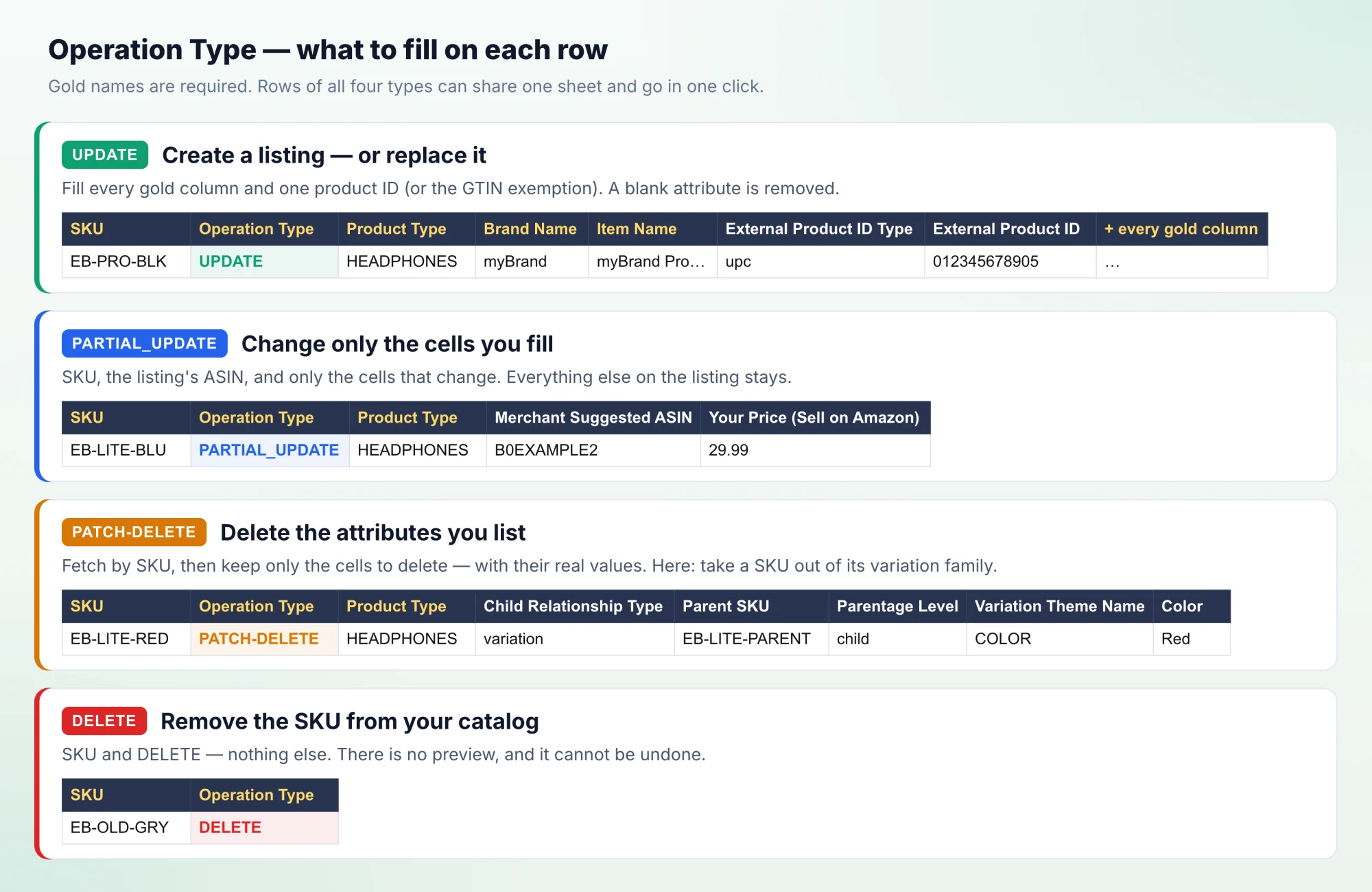
PARTIAL_UPDATE sends only the cells you fill. Everything else on the listing stays as it is. With UPDATE, a blank cell would be removed from the listing.
Here you change the price of EB-LITE-BLU to 29.99:
- On a row, fill SKU = EB-LITE-BLU, Operation Type =
PARTIAL_UPDATE, Product Type = HEADPHONES. - Fill the listing's ASIN in Merchant Suggested ASIN. A
PARTIAL_UPDATErow without the ASIN (or the External Product ID) is blocked, because Amazon sometimes creates a new listing from a partial update. Don't know the ASIN? Click Fetch by SKU: the row fills from your live listing, with its ASIN or its barcode. The other cells then hold your live values, so sending them again changes nothing. - Fill only the cell to change: Your Price (Sell on Amazon) = 29.99.
- Validate (Preview), then Create/Replace/Del.
These are the columns sellers change most often:
| To change | Column |
|---|---|
| Title | Item Name |
| Bullets | Bullet Point (one per line) |
| Description | Product Description |
| Search terms | Generic Keyword |
| Price | Your Price (Sell on Amazon), Sale Price (Sell on Amazon) |
| Stock (merchant-fulfilled) | Quantity |
| Images | Main Image URL, Other Image URL |
Lesson 3 — Take a SKU out of its variation family (PATCH-DELETE)
PATCH-DELETE deletes only the attributes you list. Here EB-LITE-RED leaves the EB-LITE-PARENT family, and the parent and the other colours stay as they are:
- Type the SKU in column B and click Fetch by SKU. The row fills with its real values.
- Set Operation Type to
PATCH-DELETE. - Clear every attribute cell except Child Relationship Type, Parent SKU, Parentage Level, Variation Theme Name and the theme's own attribute (here Color = Red).
- Validate (Preview), then Create/Replace/Del.
Keep the real values
Amazon deletes the value that matches. Fetch first and leave the fetched values exactly as they are. Don't retype them.
Lesson 4 — Delete a SKU (DELETE)
- Type EB-OLD-GRY in column B and click Fetch by SKU. The row now holds the whole listing.
- Click Backup. It saves a copy of the tab in your Drive and records its link on the Listing Log tab of this spreadsheet.
- Set Operation Type to
DELETE. The other cells can stay — aDELETErow sends only the SKU. - Click Create/Replace/Del.
A DELETE row needs only SKU and Operation Type: no product type and no template. To delete many SKUs, paste them into column B, click Fetch by SKU and Backup, fill DELETE down column C, then click Create/Replace/Del. (up to 20 rows) or Submit Feed (more).
No preview, no undo
DELETE removes the SKU from your catalog. Validate skips DELETE rows because Amazon has no preview for them, and the deletion cannot be undone.
All four in one batch
A sheet can hold rows of every Operation Type. One click of Create/Replace/Del. runs each row by its own type:
Validate, publish, read the result
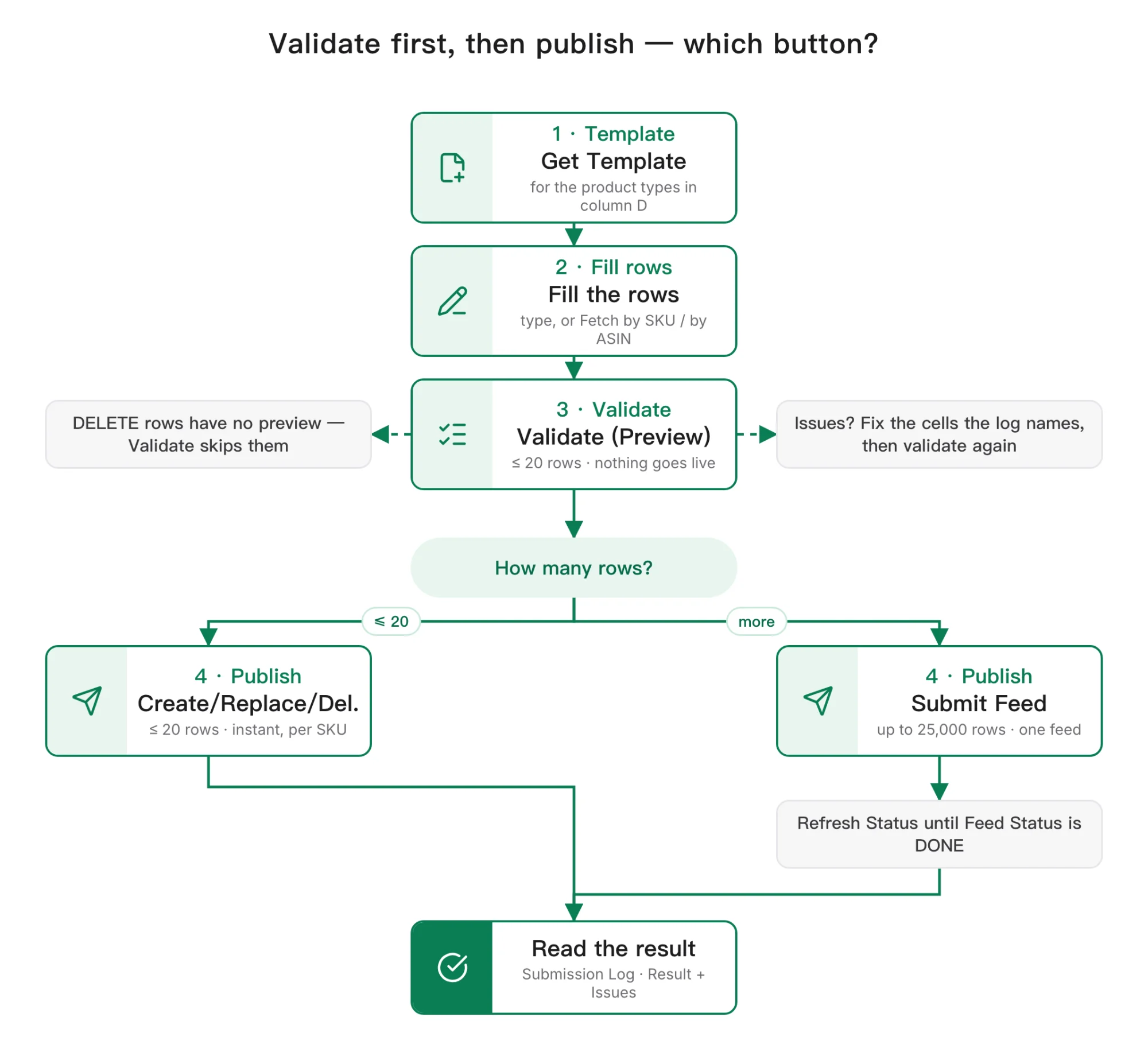
| Button | Rows | What it does |
|---|---|---|
| Validate (Preview) | up to 20 | Amazon checks the rows and nothing goes live. DELETE rows are skipped. |
| Create/Replace/Del. | up to 20 | Live. Each row runs by its Operation Type; the result for each SKU is instant. |
| Submit Feed | up to 25,000 (under 10 MB) | Live. Every row goes in one feed, which Amazon processes in its queue. |
Each run adds one row to the Submission Log tab:
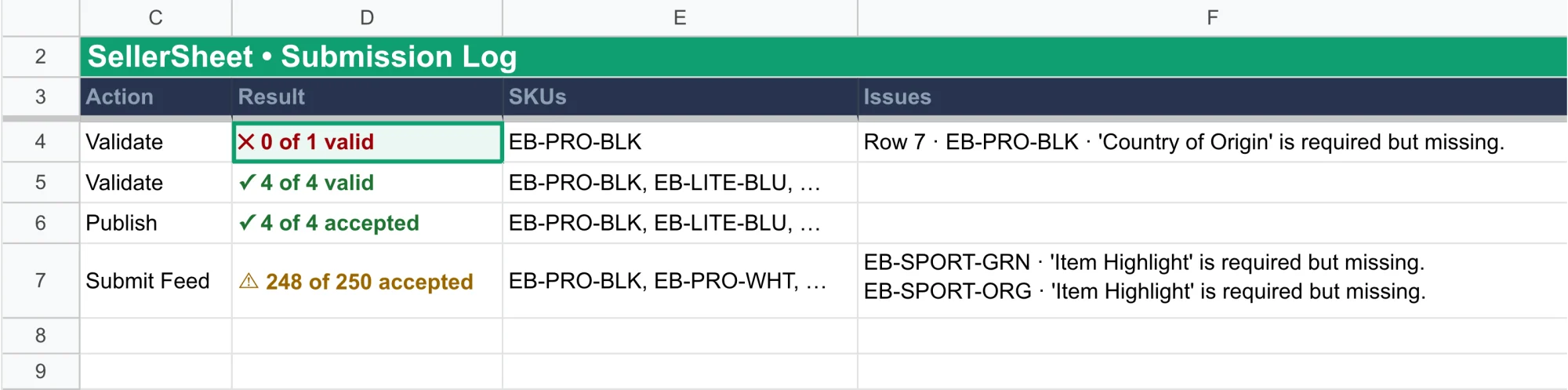
- Action names the button: Publish is Create/Replace/Del.
- Result is the cell to read:
✓ 4 of 4 accepted,⚠ 248 of 250 acceptedor⏳ Processing. - Issues gives one line per problem, naming the sheet row or the SKU.
- Feed ID and Feed Status are filled for Submit Feed only. Remark ✎ is for your own notes, and Raw Response keeps Amazon's full answer.
Bulk: more than 20 rows
- Put up to 20 sample rows on the tab, one or two of each product type, and Validate them until they pass.
- Add the rest of the rows and click Submit Feed.
- Open the Submission Log tab and click Submission Log › Refresh Status until Feed Status reads
DONE. Result then shows how many rows Amazon accepted, and Issues shows the rest.
Other ways to fill rows
- Fill from JSON: paste a listing's JSON (for example the JSON cell of a Listing Snapshot row) into Attributes JSON and click Fill from JSON. An empty SKU or Product Type is filled from the JSON too.
- From Listing Drafts: copy written with AI arrives with Send to Publish Queue. See Write listings with AI.
- Existing ASINs: to sell a product that is already on Amazon, use product type
PRODUCT. See Bulk add existing ASINs. - The sidebar's full button list is on Catalogs.
Tricks that save you time
Fetch a whole column of SKUs at once
Type 50 SKUs in column B and click Fetch by SKU once; each row fills from its own listing. Only rows with an empty Item Name are fetched. A run stops after about five minutes, and the sidebar says how many rows are left — click again to continue.
Let Amazon fill in the product type
You don't need to know a SKU's product type to get its template:
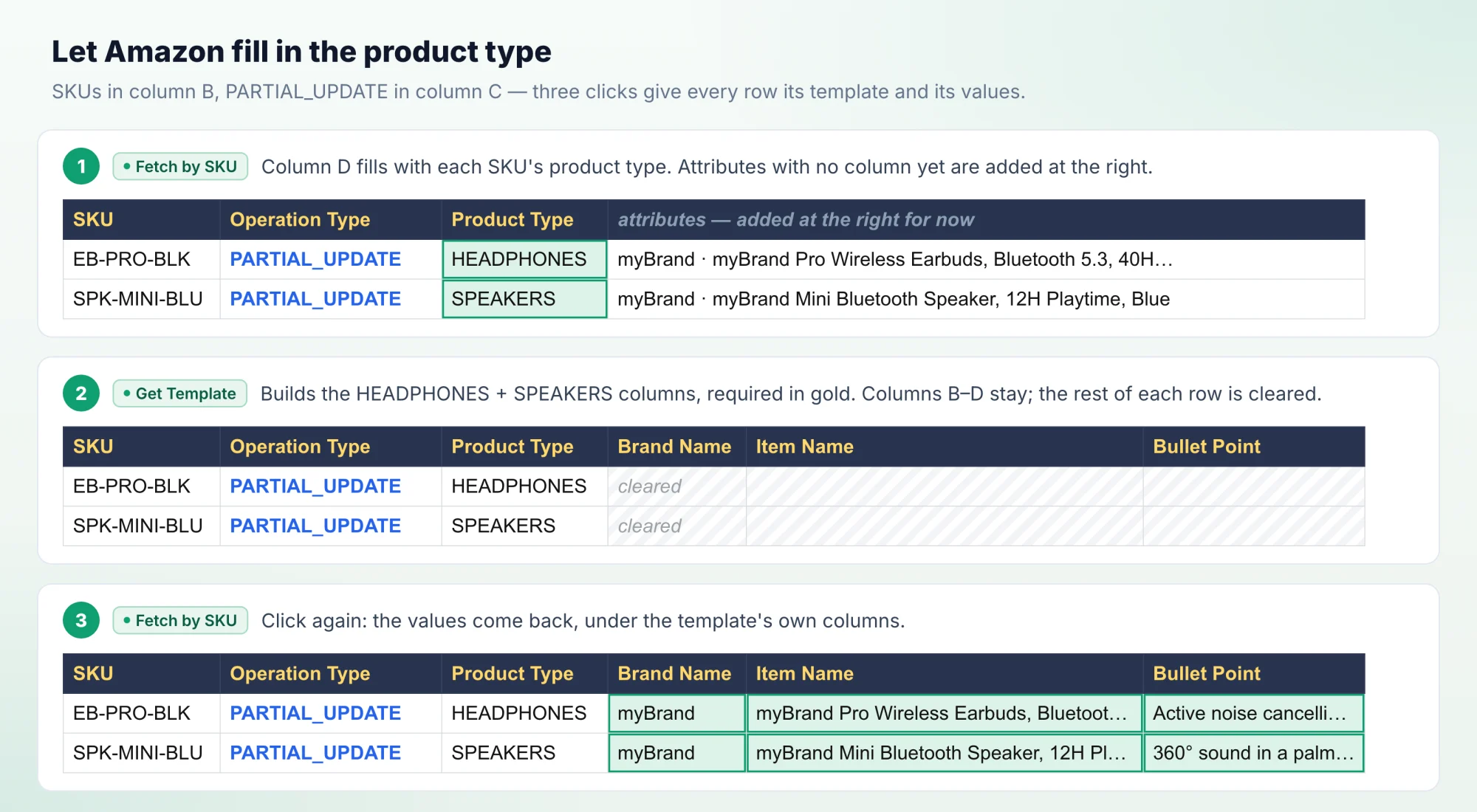
- Type the SKUs in column B and
PARTIAL_UPDATEin column C, then click Fetch by SKU. Column D fills with each SKU's product type. Values that have no column yet go into new columns at the far right. - Click Get Template. It builds the columns of every product type in column D, in Amazon's order, with the required names in gold, and replaces those extra columns.
- Click Fetch by SKU again. Get Template cleared everything except columns B–D, so this second fetch puts the values back, under the template's own columns this time.
- Change the cells you want, then click Validate (Preview).
You can also copy a SKU's SKU (column B) and Product Type (column J) from Listing Snapshot. For a product you don't sell yet, put its ASIN on a Listing Snapshot row and click Fetch by ASIN; column J shows its product type.
Change a listing without a new template
A SKU of another product type can use the columns already on the tab, so you skip Get Template, which would clear your rows. Item Name, Bullet Point and Your Price are on almost every template. For a PARTIAL_UPDATE, column D must hold the SKU's own product type, because Amazon checks the row against it. Copy it from Listing Snapshot, or click Fetch by SKU on the row.
Check whether Amazon took your change
accepted means Amazon accepted your submission. Shoppers see Amazon's product page, and Amazon may show another seller's value there, or its own, instead of yours. To see which value won, fetch the product twice on Listing Snapshot — once by SKU, once by ASIN — and compare. See Live listings, Lesson 3.
Read the guides in your own language
B3 Listing Locale is the language shoppers read. C3 Template Locale is the language you read the row-4 guides and the row-6 names in. A US listing can be written in en_US while you read the template in zh_CN; the row-6 names then show in Chinese, while this guide uses the English names.
One Publish Queue per marketplace
The Publish Queue buttons work on any tab whose name starts with Publish Queue. Duplicate the tab and rename the copy Publish Queue UK. Set its A3 to myStore-UK and B3 to en_GB, then click Get Template. Each tab keeps its own store and template. Listing Drafts' Send to Publish Queue always fills the tab named exactly Publish Queue.
If a row is blocked
The sidebar checks every row before it sends anything. If one row fails a check, nothing is sent, and the message names the row:
| The message says | Fix |
|---|---|
| operationType is empty | Fill column C. A blank is never treated as UPDATE, because UPDATE replaces the whole listing. |
| SKU "…" is on rows 7, 9 | Keep one row per SKU. |
| … has no productType | Fill column D. Only a DELETE row can leave it blank. |
| UPDATE needs a product identifier | Fill External Product ID (type and value) or Merchant Suggested ASIN, or set Has GTIN exemption? to Yes. |
| … are mutually exclusive — fill exactly one | A row has both a product ID and the GTIN exemption. Clear one. |
| PARTIAL_UPDATE requires … | Fill the ASIN in Merchant Suggested ASIN. Fetch by SKU fills the ASIN or the barcode. |
| Product type "…" does not exist on this marketplace | Check column D. Product types are in capitals, such as HEADPHONES. |
| Country Mismatch | Set B3 to a language of the store's country, such as en_GB for myStore-UK. |
| Too many SKUs … Maximum allowed is 20 | Use Submit Feed for more than 20 rows. |
| This Publish Queue sheet is an old version | Update the tab as the message says. Your old tab is kept as a backup tab, so you can copy your rows over from it. |
This message comes from Amazon, not from the sidebar: "'X' is required but missing — but you filled X…". The value you typed isn't exactly one of the dropdown options, and capital letters count. Amazon ignores the value and reports it as missing. Pick it again from the dropdown.
Frequently asked questions
Is the Publish Queue the same as Seller Central's flat file?
It holds the same columns. The tab's hidden row 5 carries Amazon's own flat-file key for every column, and row 6 the column names you know from the template. What differs is the workflow — the template builds in the sheet, Amazon checks rows before they go live, and the results land in the Submission Log tab instead of a report you download.
Why was my PARTIAL_UPDATE row blocked?
A PARTIAL_UPDATE row needs the listing's identifier — its ASIN in Merchant Suggested ASIN, or the External Product ID. Amazon sometimes creates a new listing from a partial update; with the identifier filled it never will. Fetch by SKU fills it from your live listing.
Can I validate more than 20 rows?
No. Validate (Preview) and Create/Replace/Del. take up to 20 SKUs. For a bigger batch, validate up to 20 sample rows first, then put all the rows in and click Submit Feed — up to 25,000 rows, under 10 MB.
Can I undo a DELETE?
No. DELETE removes the SKU from your catalog, has no preview and cannot be undone. Fetch the SKU first, then click Backup — it saves a copy of the tab, with the whole listing, and records its link on the Listing Log tab — so you can list the SKU again from the copy.
Why did Fetch by SKU skip my row?
Fetch by SKU, Fetch by ASIN and Fill from JSON run only on rows whose Item Name is empty — a filled title means the row is done. Clear the Item Name to fetch the row again; the whole row is then rewritten from the live listing.
Does Get Template erase what I typed?
It keeps the SKU, Operation Type and Product Type of every row (columns B–D) and clears the other cells of the rows below the header, so run it before you fill the rows. If the rows came from Fetch by SKU or Fetch by ASIN, fetch again afterwards to put the values back.