
How to Sync Amazon Orders to Your Google Sheets
Sync your Amazon Seller Central orders into Google Sheets with the SellerSheet sidebar, keep them updated automatically, and refresh any single order on demand.
Keeping track of your Amazon orders and analyzing sales data is crucial for business growth. This guide shows you how to sync your Amazon orders to Google Sheets automatically, for better organization and analysis.
Prerequisites
- Store connected: your Amazon store is connected to your SellerSheet account (sign in at sellersheetai.com).
- Sidebar installed: the SellerSheet add-on is installed in Google Sheets. If not, follow Install & first sync.
Step 1: Open the sidebar and sync orders
To begin, trigger the first fetch from the SellerSheet sidebar:
- Open your Google Sheet and launch the SellerSheet sidebar.
- Go to the Sales panel.
- Click Sync Orders.
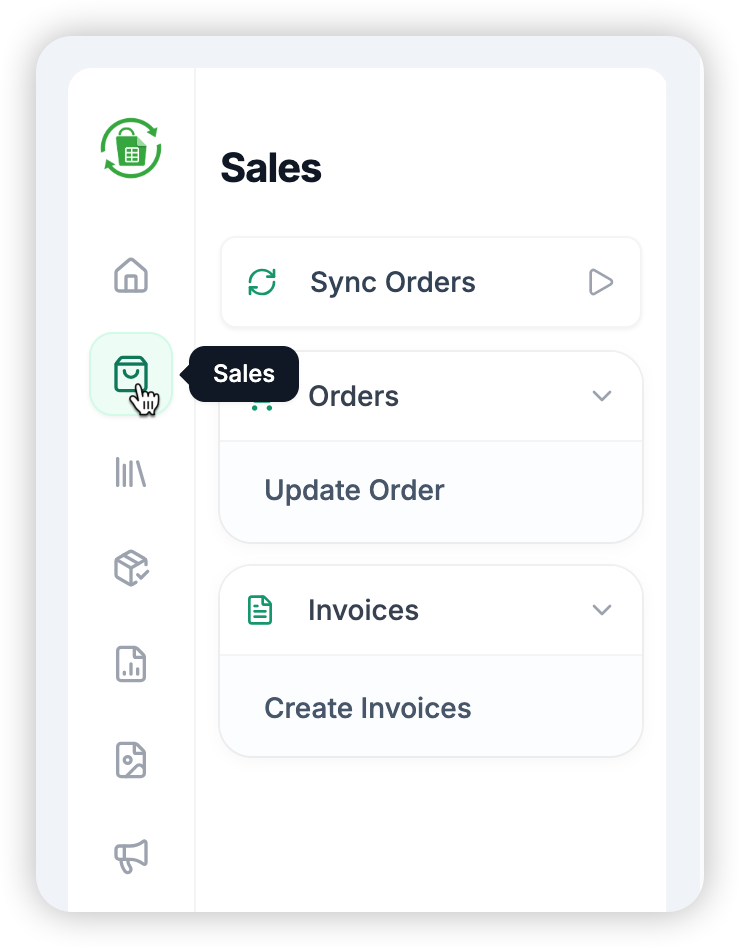
Syncing logic explained
- First time: the first Sync Orders fetches the last 30 days of orders. This may take a few moments.
- Automatic sync: after that, SellerSheet keeps the sheet current by itself — about every 2 hours, together with the fees sync, fetching everything since the last sync.
- Updates: existing orders are updated when something changed (a status update, for example) since the last sync.
- Manual sync: click the button again at any time for an immediate refresh.
Step 2: Access and manage your orders
Once synced, your order data lives in a dedicated spreadsheet:
- Open the SellerSheet Sales spreadsheet — from your Google Drive, or from the panel's Resources links in the sidebar.
- Go to the Orders sheet, where synced orders populate automatically.
Manual order updates
To update one order immediately, without waiting for the automatic sync:
- Find the order in the AmazonOrderId column.
- Click the cell containing its AmazonOrderId.
- In the sidebar, click Update Order. SellerSheet fetches the latest information for that order from Amazon.
Update Order works on the active cell: the active row must hold a valid Store and AmazonOrderId.
Pro tip: pull historical orders
You can pull orders that are not in your sheet yet. Write the Store and AmazonOrderId in an empty row, click the AmazonOrderId cell, and click Update Order to pull that order's data into the sheet.
Bulk invoice creation
Beyond syncing orders, you can use your order data to generate invoices for your customers.
Fill the Store Info sheet once, and SellerSheet puts your branding and business details into every invoice generated from the Invoices sheet. For the step-by-step, see How to Bulk Create Invoices for Amazon Customers.
Conclusion
With the sync running on its own, you save the time of manual data entry and keep an up-to-date view of your Amazon business. Every button of the panel is listed on Sales.